
Financial Planning: Post actuals for project expenses and reflect in PPM Item actuals (Item -> PS project)
Solution
Customize PS Project Creation in SPRO
Scenario: Create PS Project directly linked to RPM Item
- Define a new portfolio item type with Project System integration. Go to transaction
SPROand use the IMG pathSAP Portfolio and Project Management → Portfolio Management → Global Customizing → Portfolio-Independent Settings → Define Portfolio Item Types.


- Maintain its decision points, statuses, and transitions.
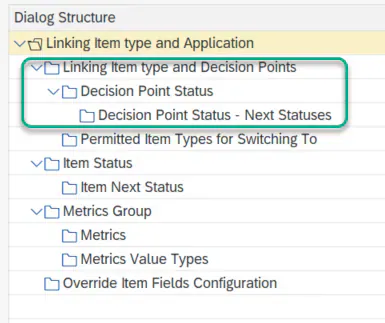
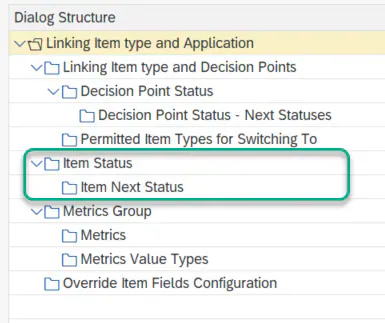
- Define the item status and its subsequent status for this item type.
- If a template PS project (or an existing PS project) is already defined for the relevant item type, register it as a template under
SAP Portfolio and Project Management → Portfolio Management → Global Customizing → Portfolio-Independent Settings → Map Item Type to Project or PS. - Choose Item Type to PS Project and maintain the item type, object type, and project ID. The sample customizing below shows the expected entries; provide the equivalent values for the item type you created above.


- Activate Project System integration. Navigate to
SAP Portfolio and Project Management → Portfolio Management → Base System Interfaces → Portfolio-Management-Specific Settings for Project Management Systems Integration → Enable Project Management System Integrationand select theSAPPSactive checkbox.

- Maintain the synchronization scenarios. Navigate to
SAP Portfolio and Project Management → Common Functions → Decision Flow Management Settings → Attribute Synchronization → Maintain Attributes for Synchronization Scenariosand ensure the scenarios below are available. You can add further scenarios here if your business cases require them.


- Maintain the object link settings that determine where the PS project is created. For each relevant object type you define the logical system, destination, and web server, so the PS project is created in the system maintained here.
- Navigate to
SAP Portfolio and Project Management → Common Functions → Decision Flow Management Settings → Define DFM Object Link Typesand maintain the logical system, destination, and web server as shown below. If the ERP system is separate, create an ABAP-type RFC connection and anSM59destination that logs on remotely with an RFC user, then enter that RFC destination here. Update all other relevant object types in the same way, such as PS WBS Element and PS Network Activity.
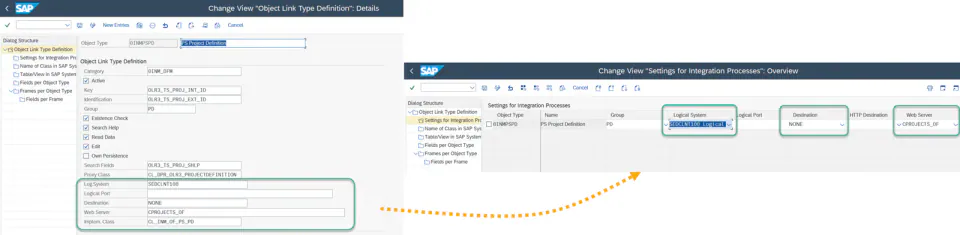
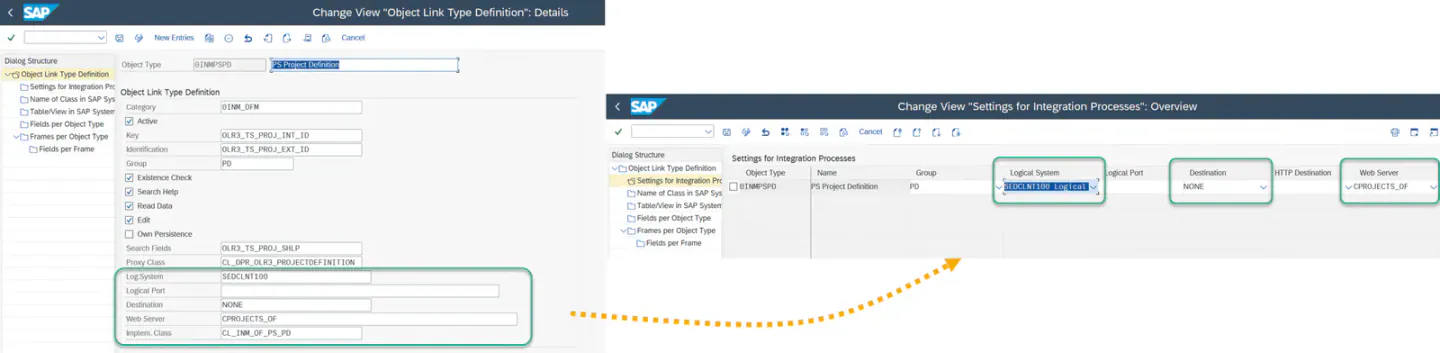
- Maintain the object link types on the RPM side. Navigate to
SAP Portfolio and Project Management → Portfolio Management → Base System Interfaces → Application Object Settings → Define Object Link Typesand maintain the logical system, destination, and web server for each relevant object type. - Update all other relevant object types in the same way, such as WBS Element (PS) and Network (PS).
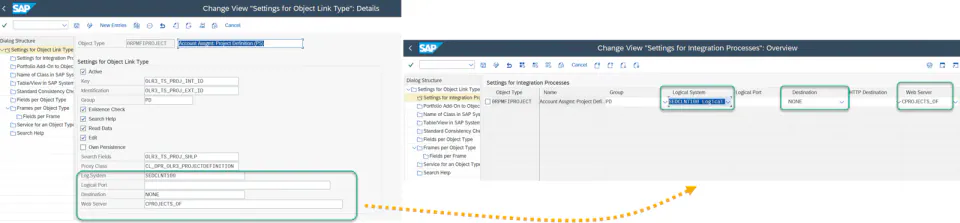
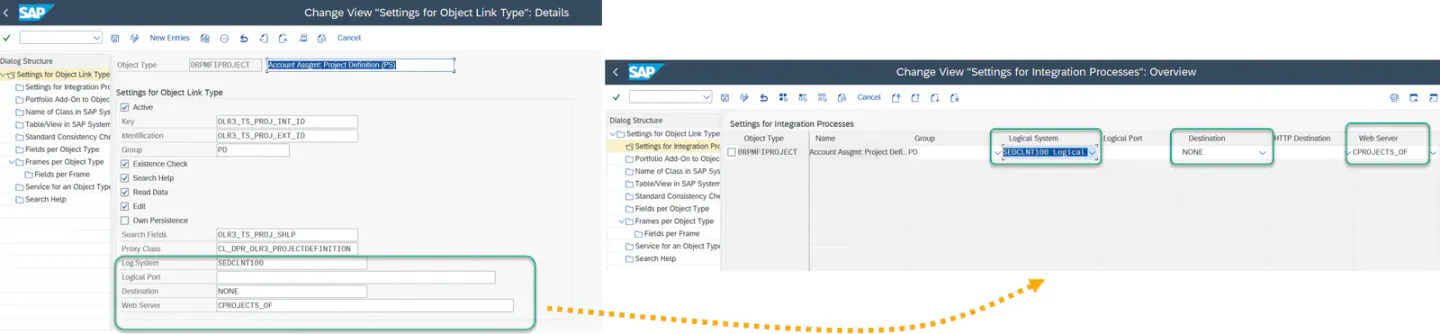
- Now create an item using the item type defined above.
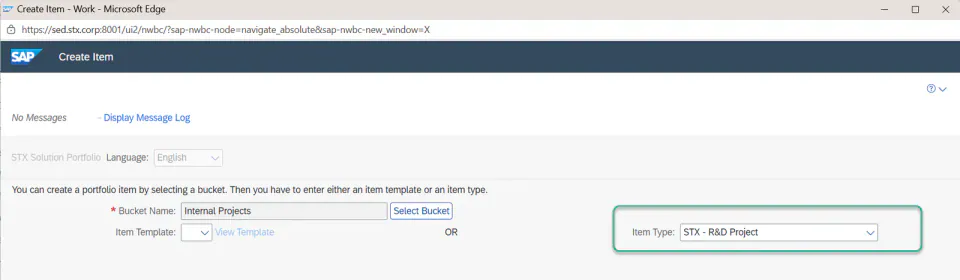
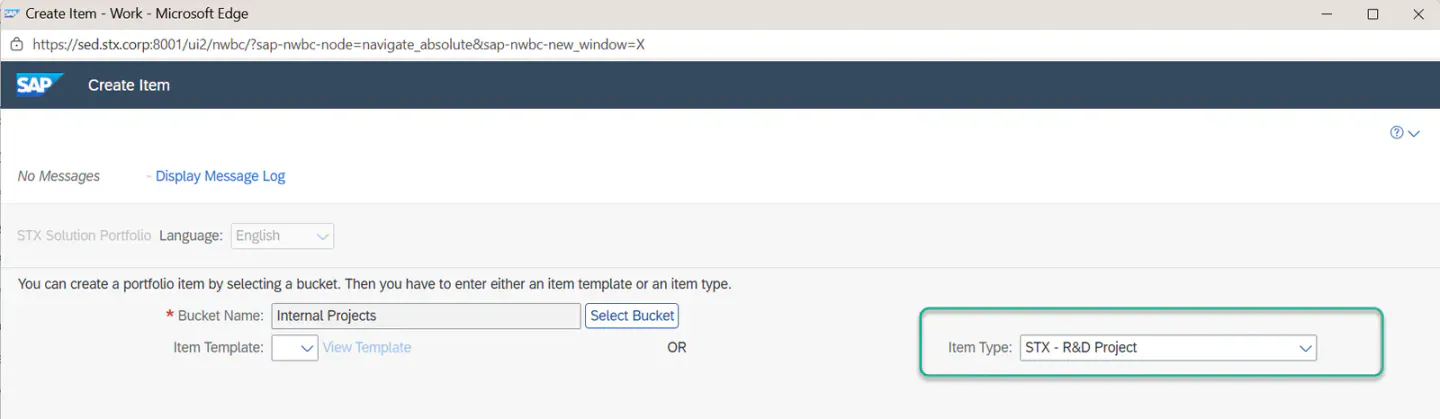
- Once the item is created, the PS project is generated automatically and linked to the item (see below).
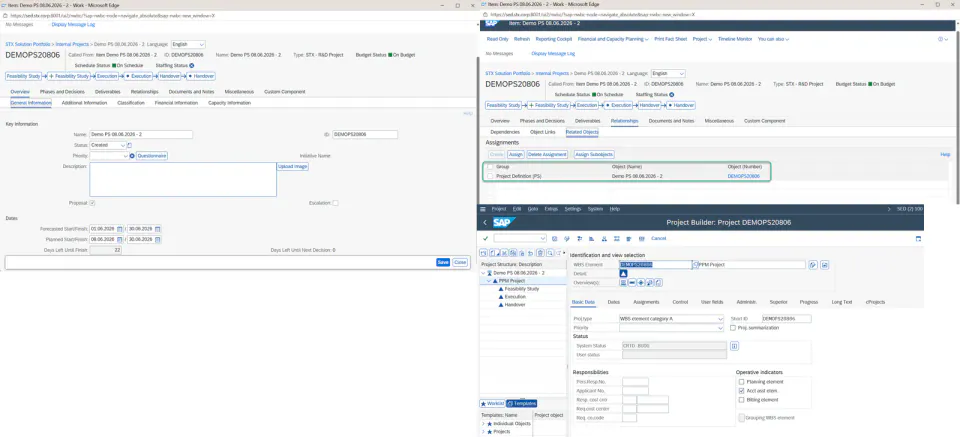
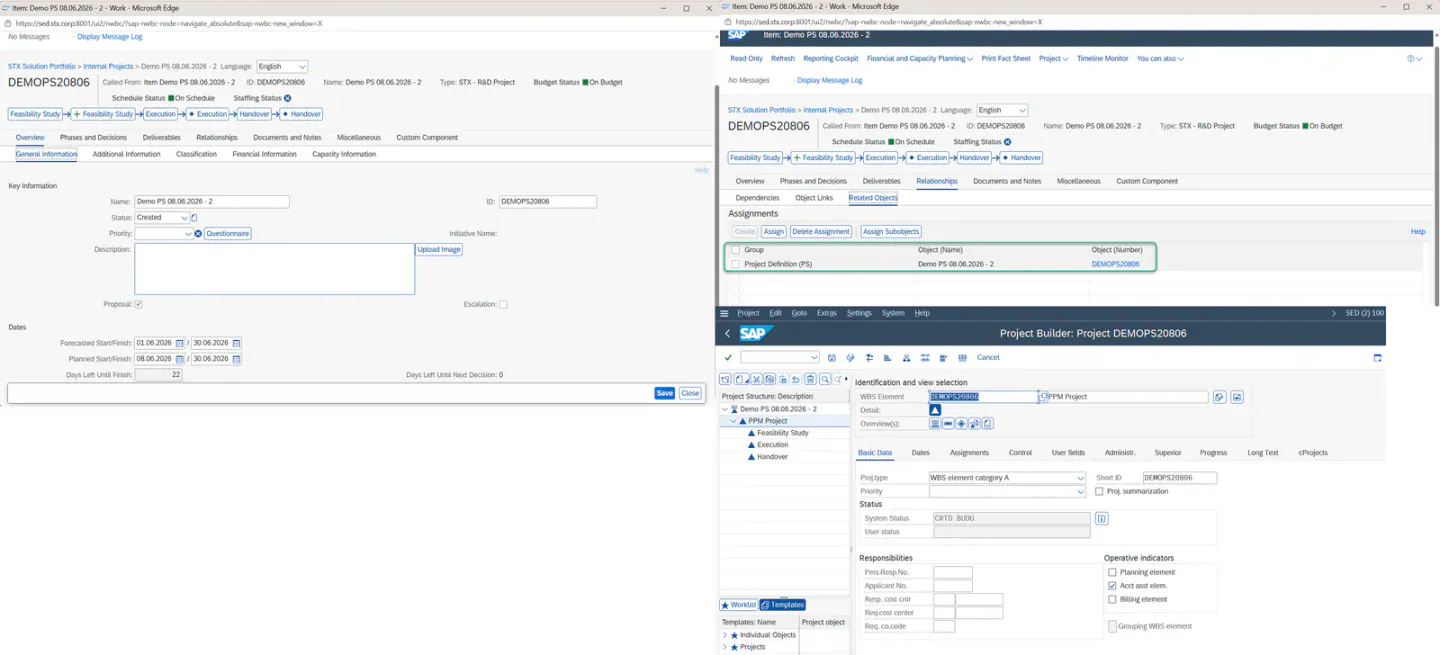
- You can now allocate the planned budget manually through financial planning.
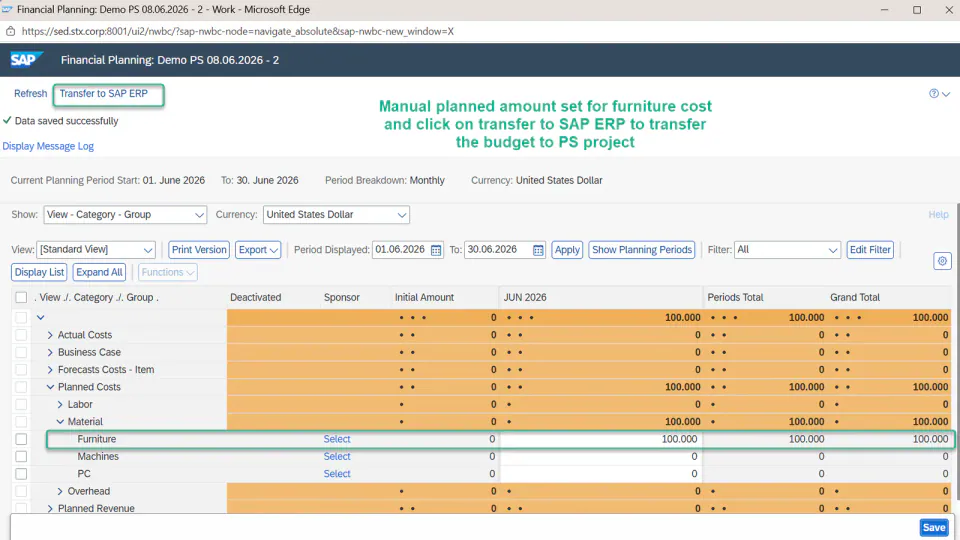
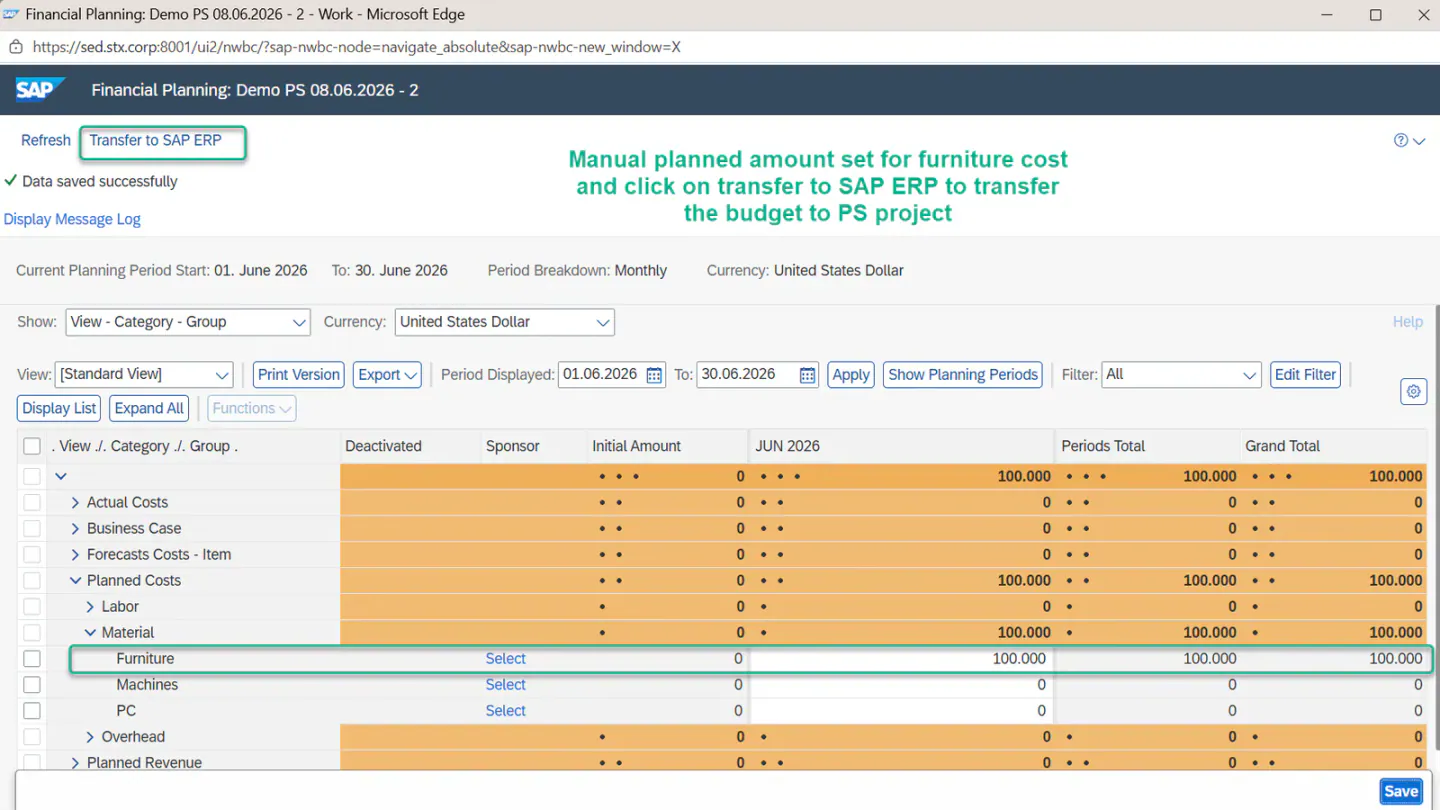
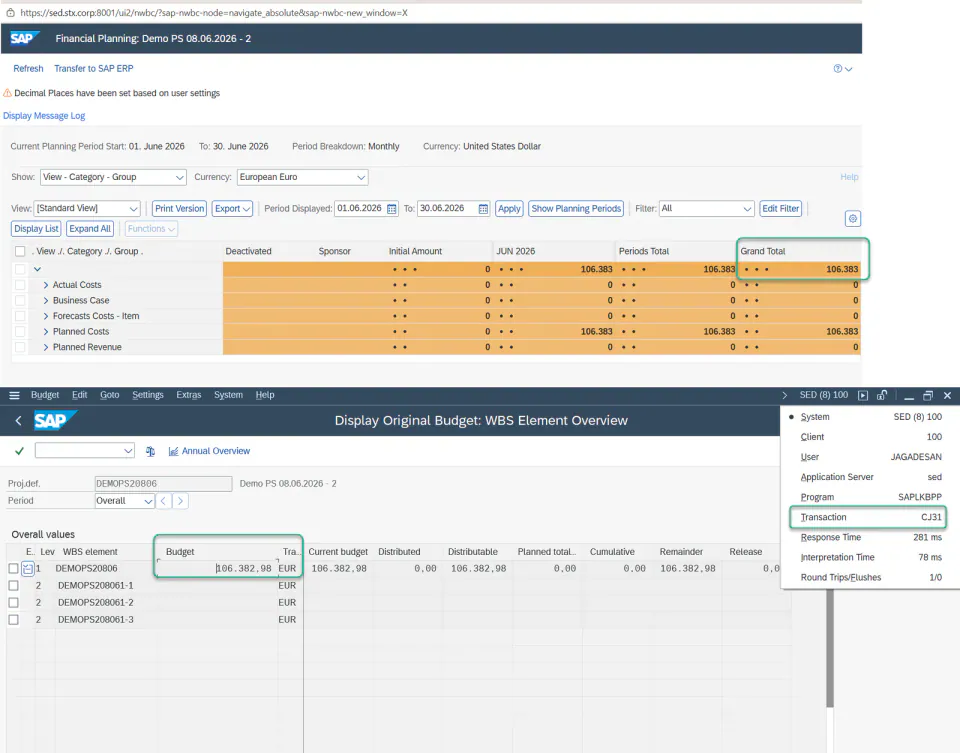
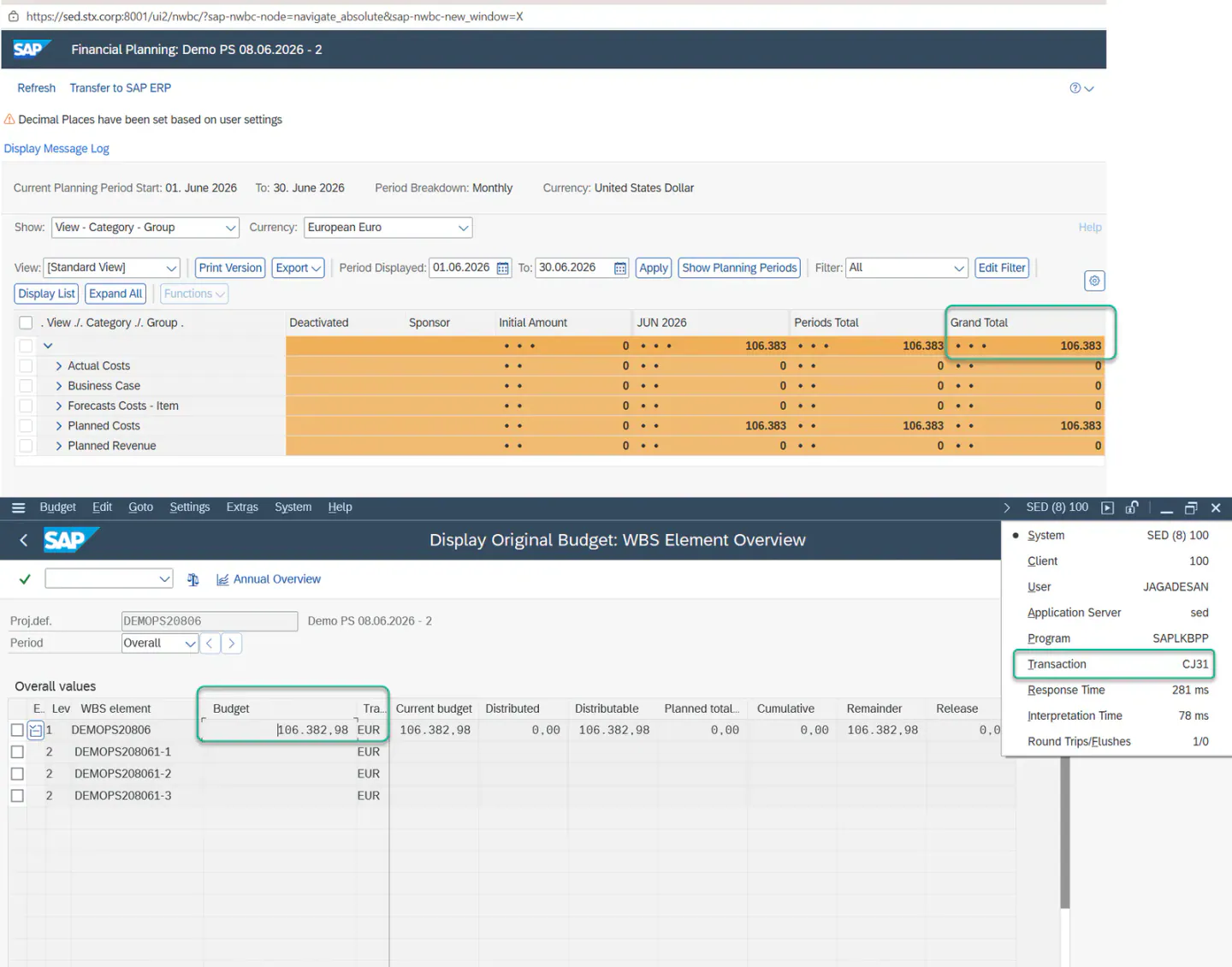
- Transfer the budget to SAP ERP using the Transfer to SAP ERP button. Select the transfer checkbox and choose OK.
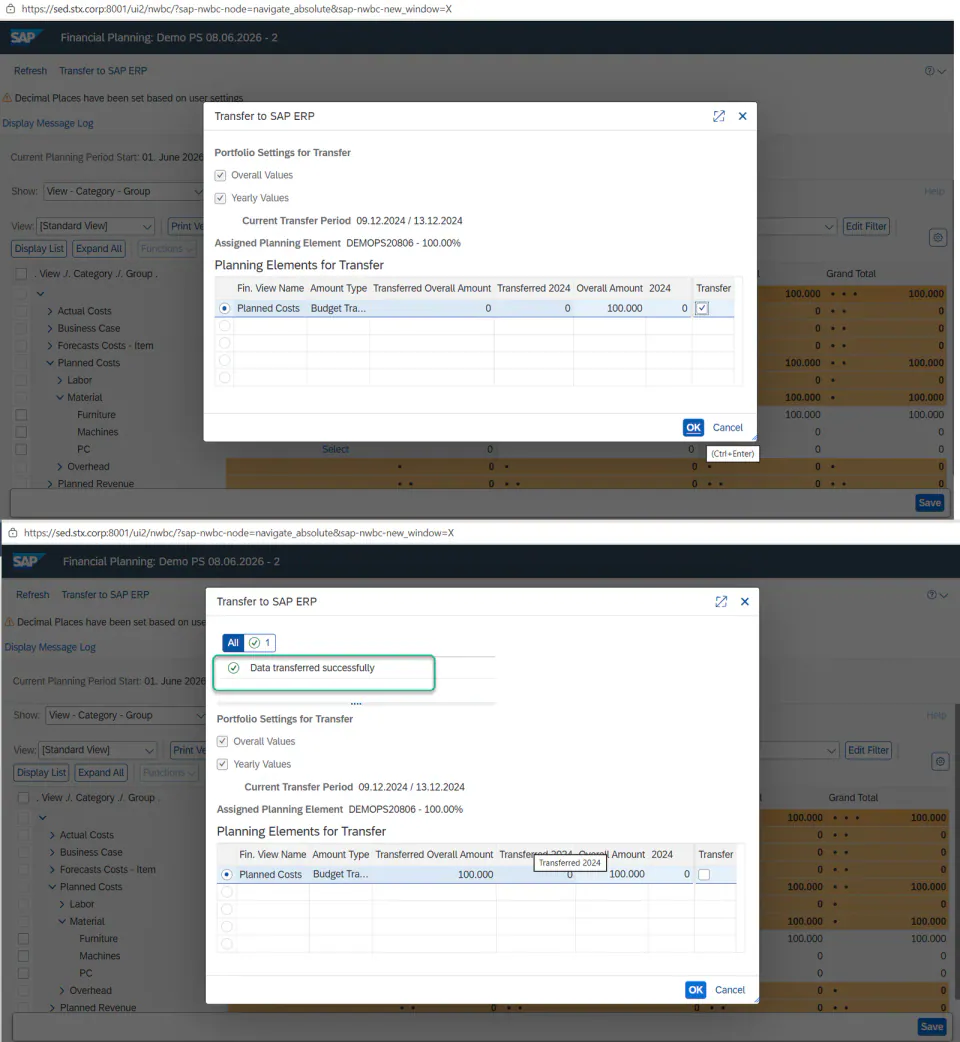
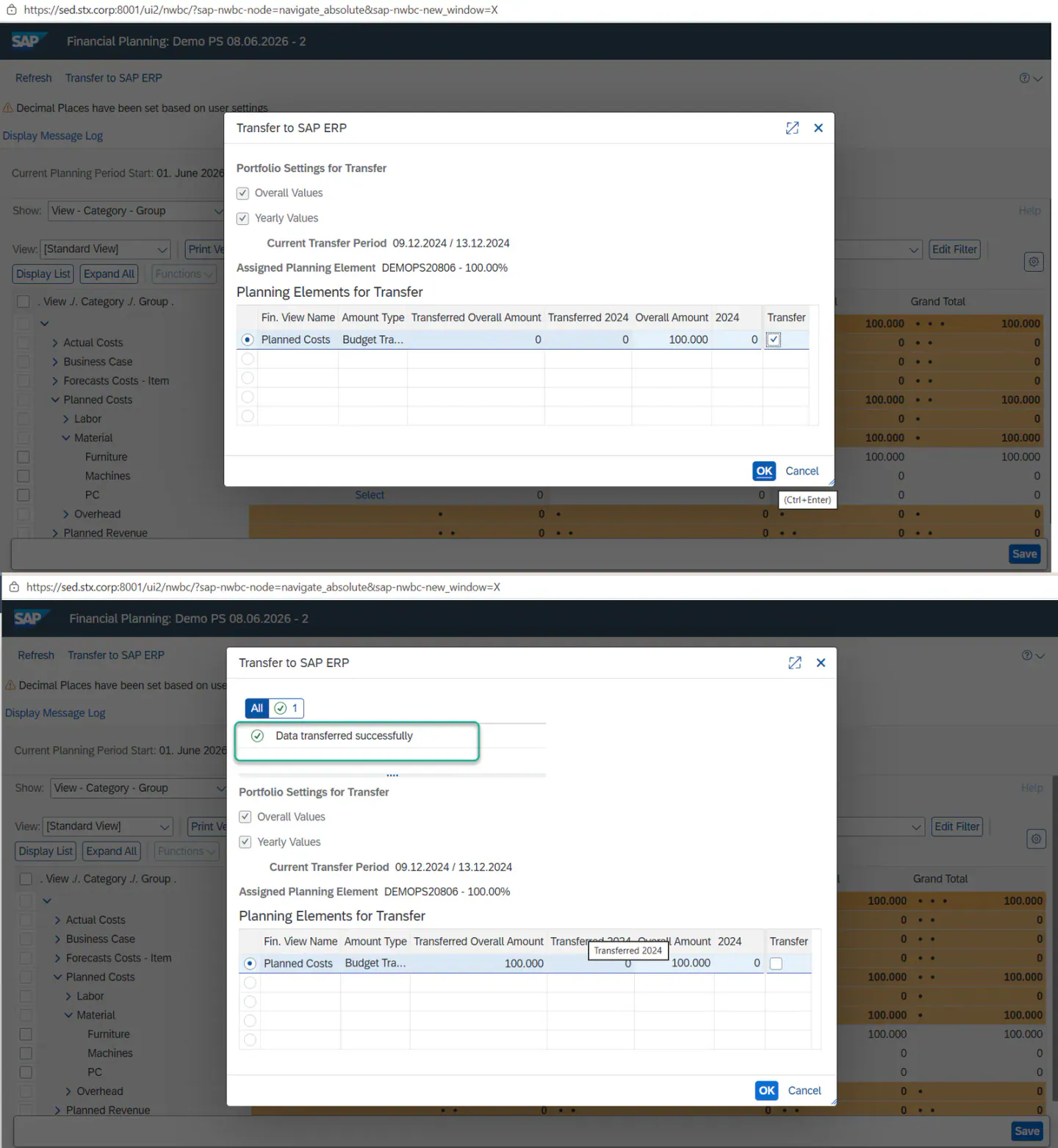
- The transferred budget is then visible in transaction
CJ31for the PS project, as shown below.
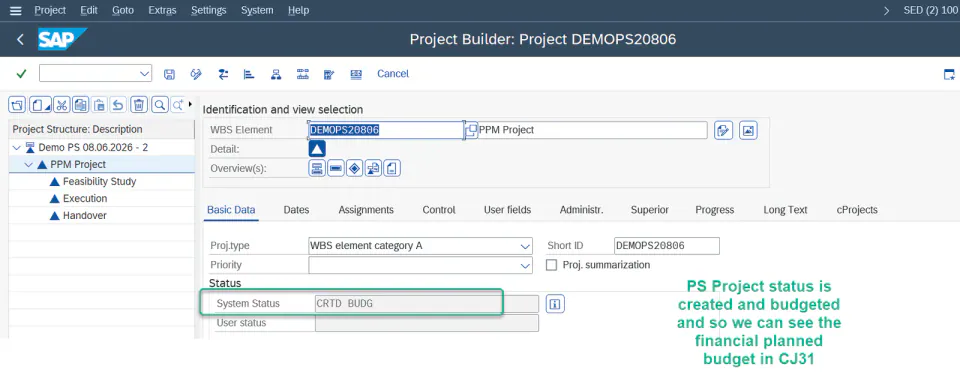
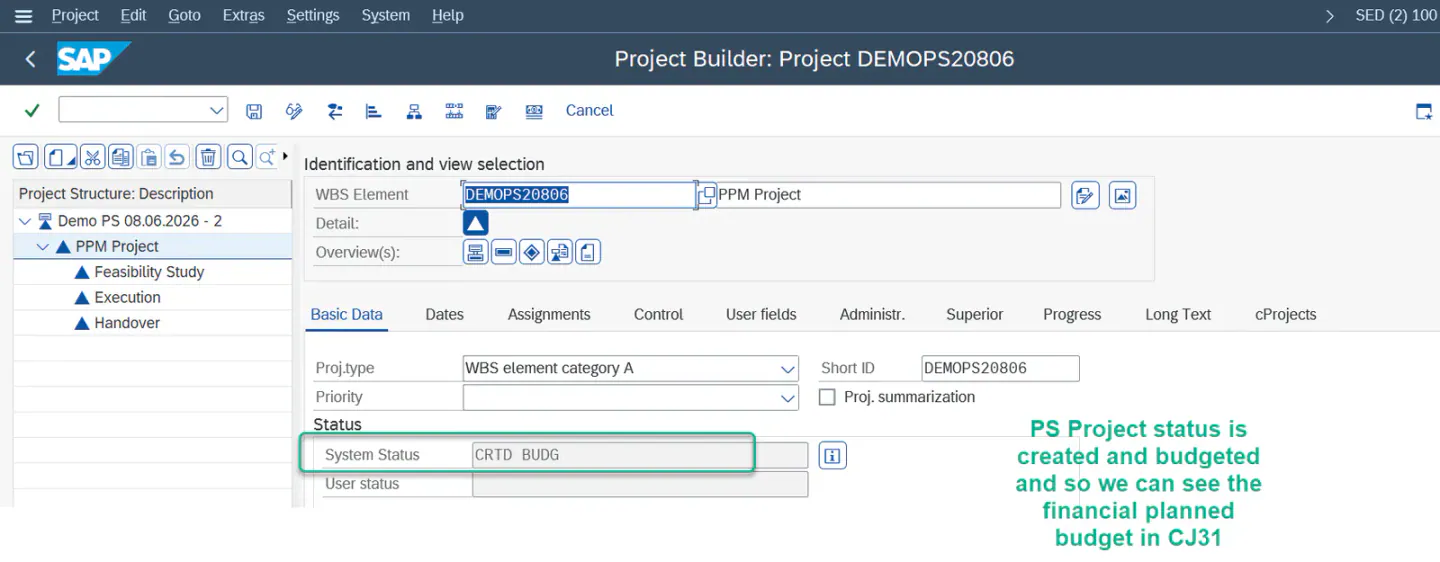
- The PS project now carries the status
CRTD BUDG, confirming that the budget amount has been allocated to it.
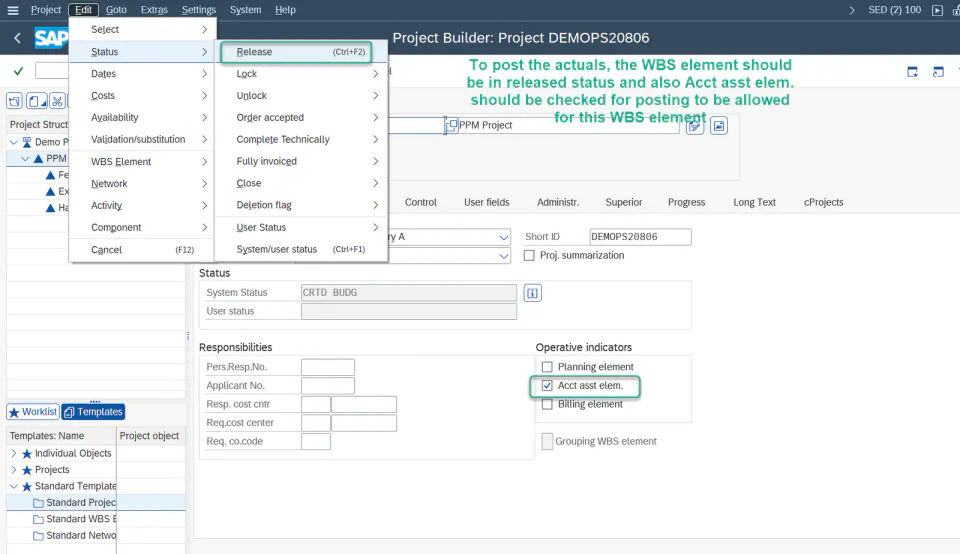
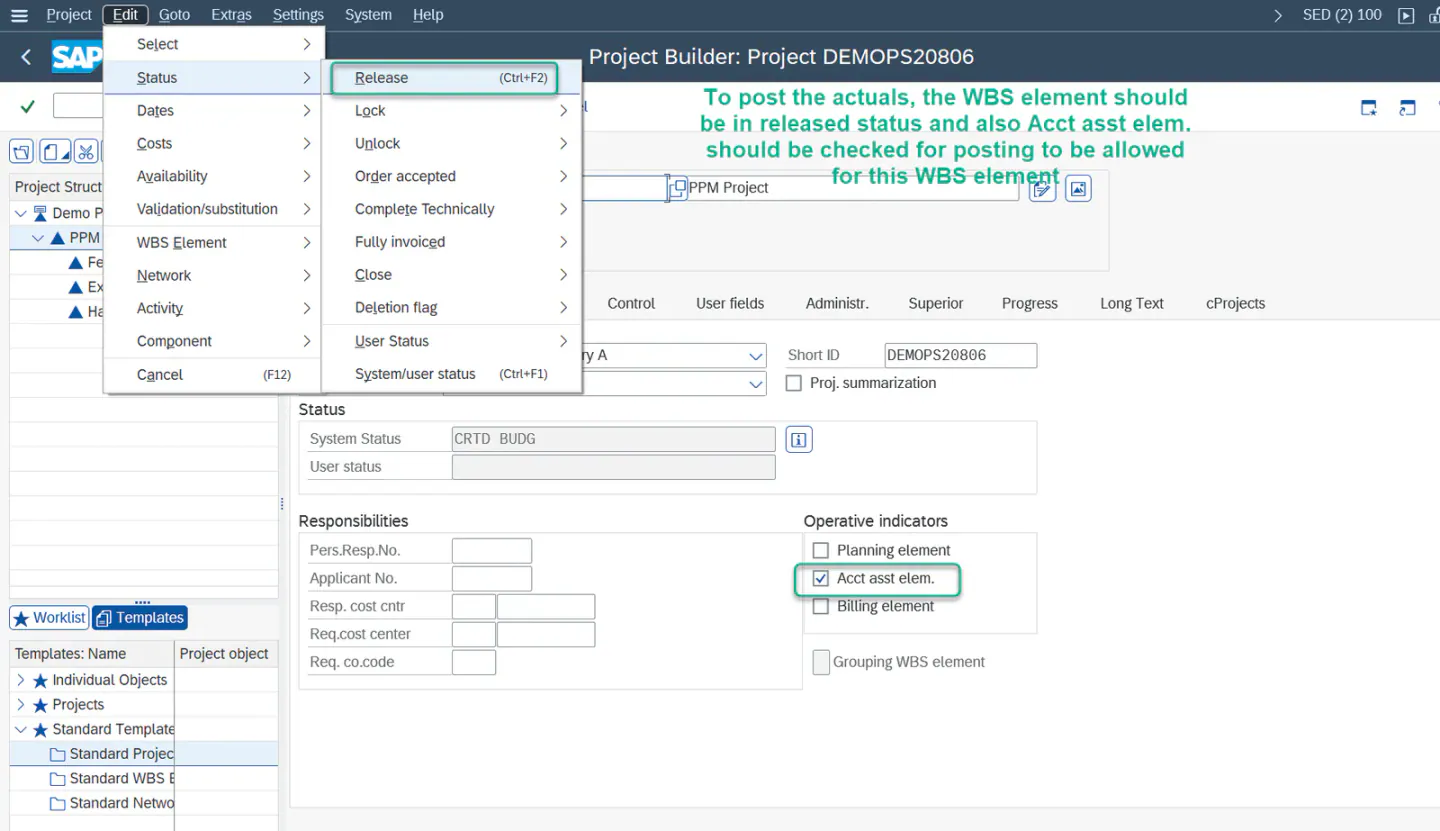
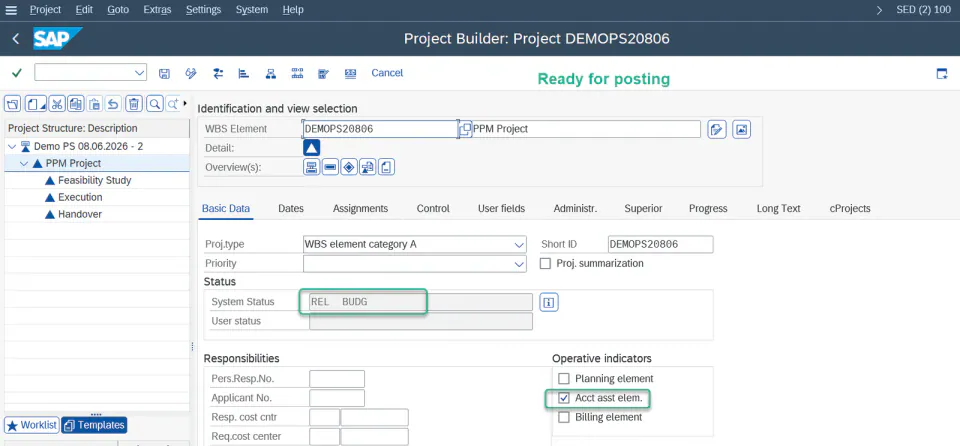
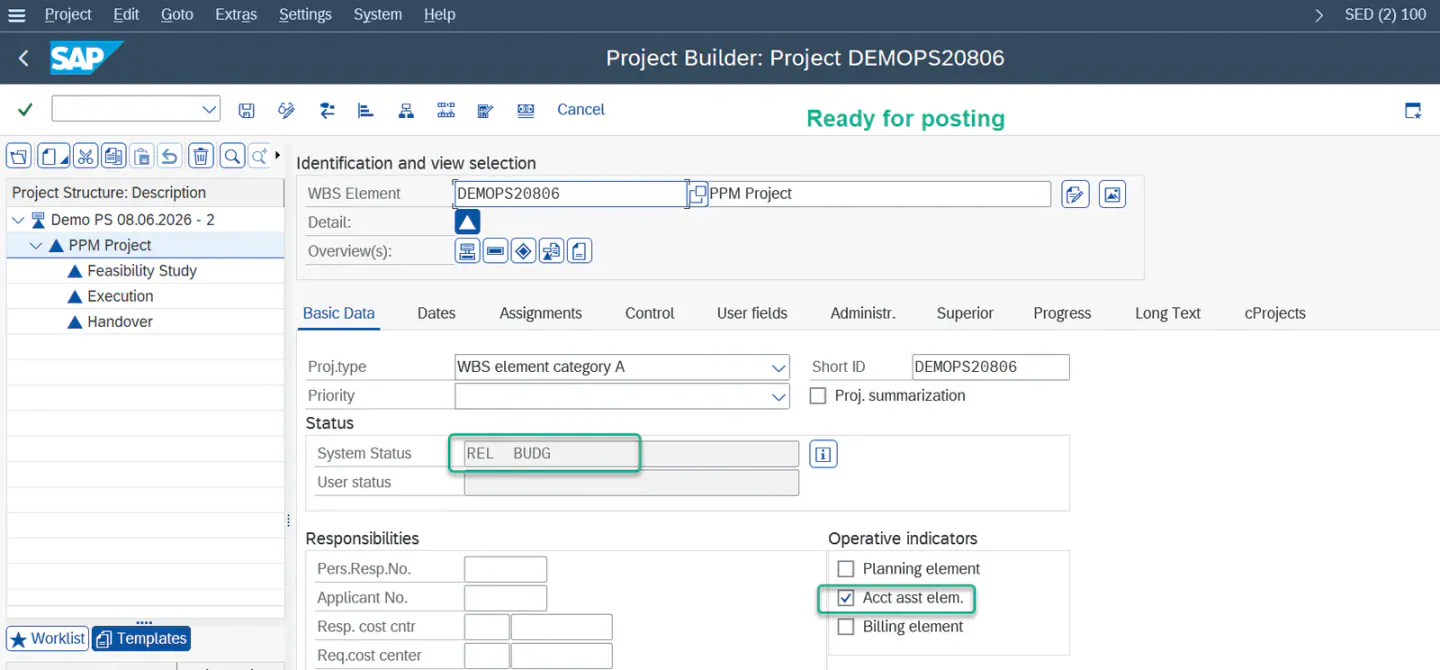
- Before posting actuals, release the WBS element if it is not already released. Use the status release shown below, and select the Acct asst elem. checkbox so the element can accept postings.
- Before posting, identify the cost element (G/L account) you will post to. You can find it via the SPRO path shown below.
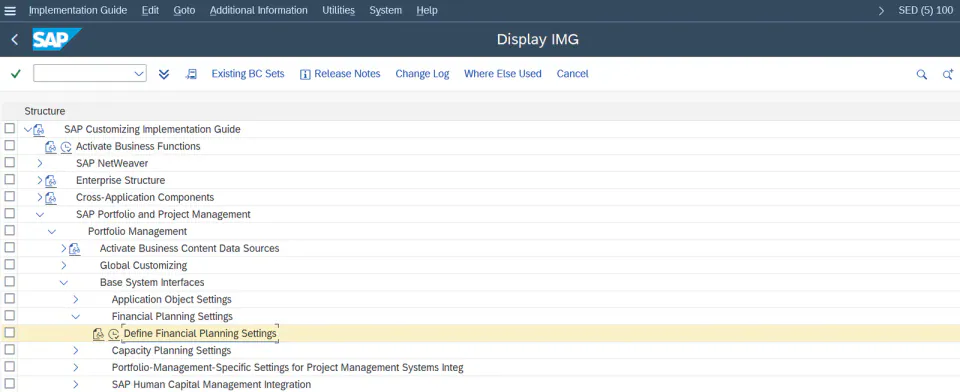
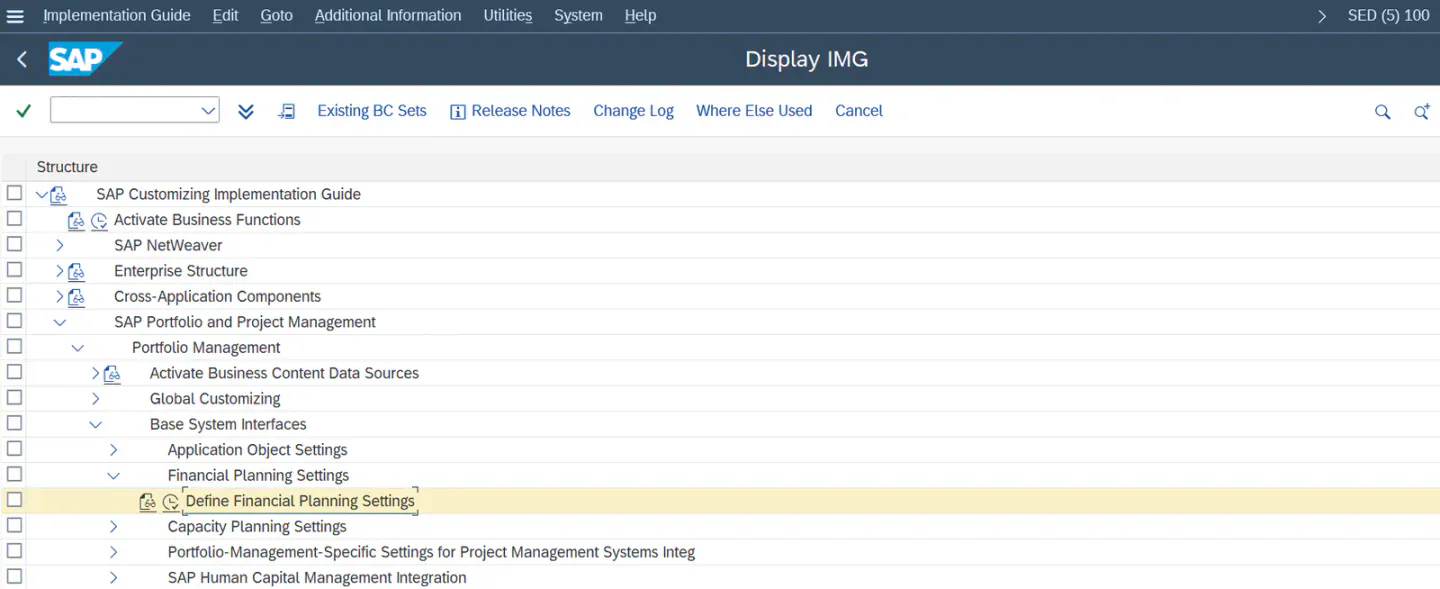
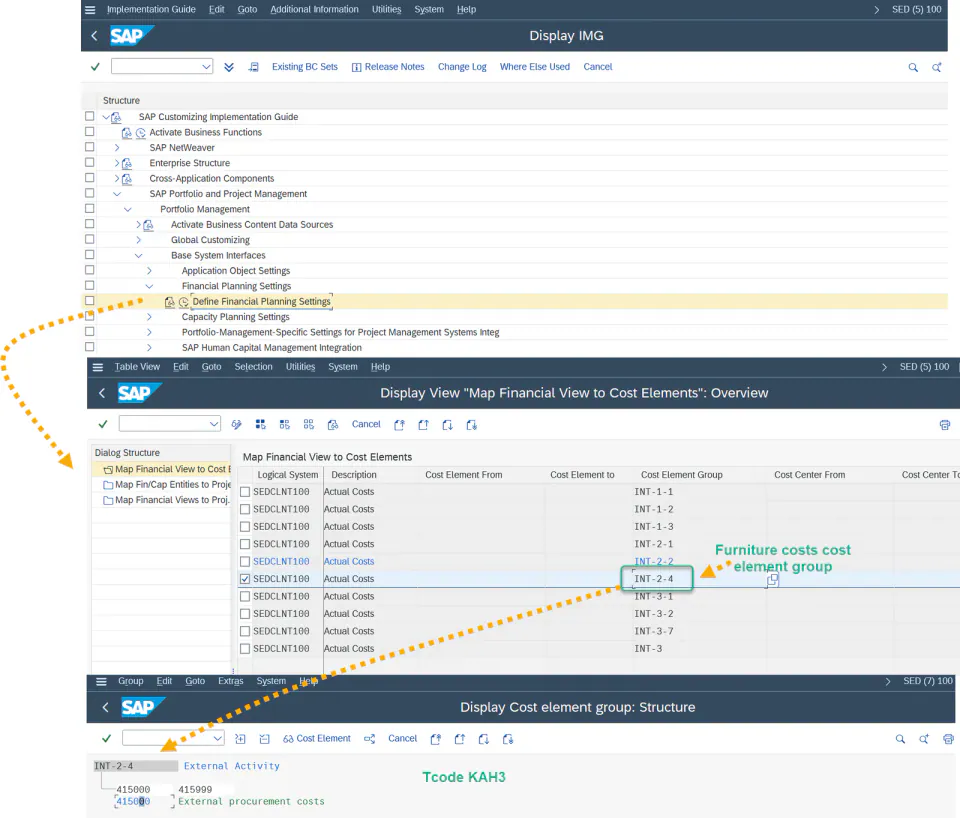
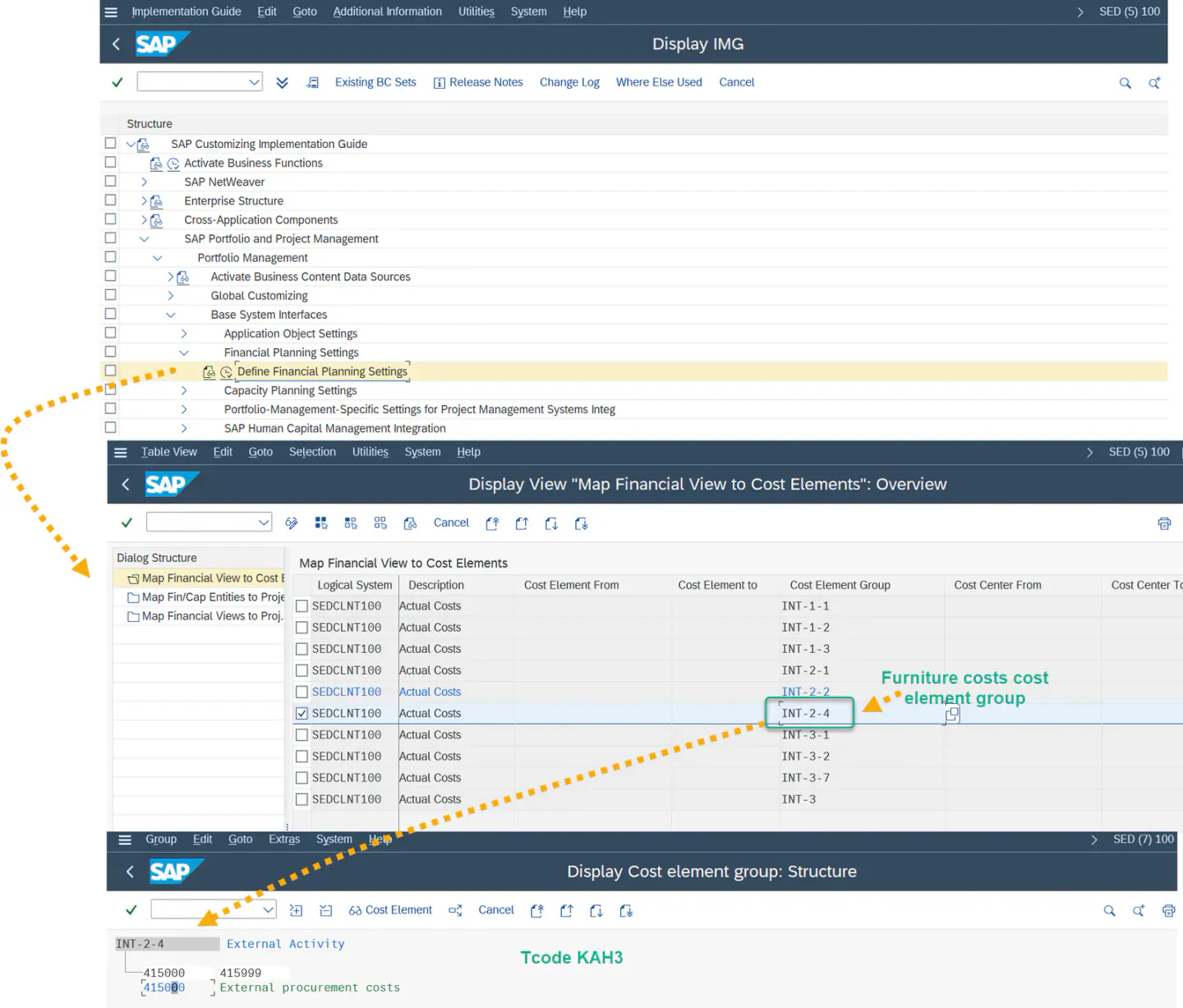
- This G/L account (for example, 415000 above) is the source account where the amount is debited. You therefore post a credit entry (posting key 50 — money leaving the account) against this G/L account. A second account is required for the offsetting debit entry (posting key 40 — money entering the account); here, a new G/L account 600000 called “project expenses” was created. The debit and credit amounts must be equal so that the document balances to zero. To post the actuals, use transaction
F-02.
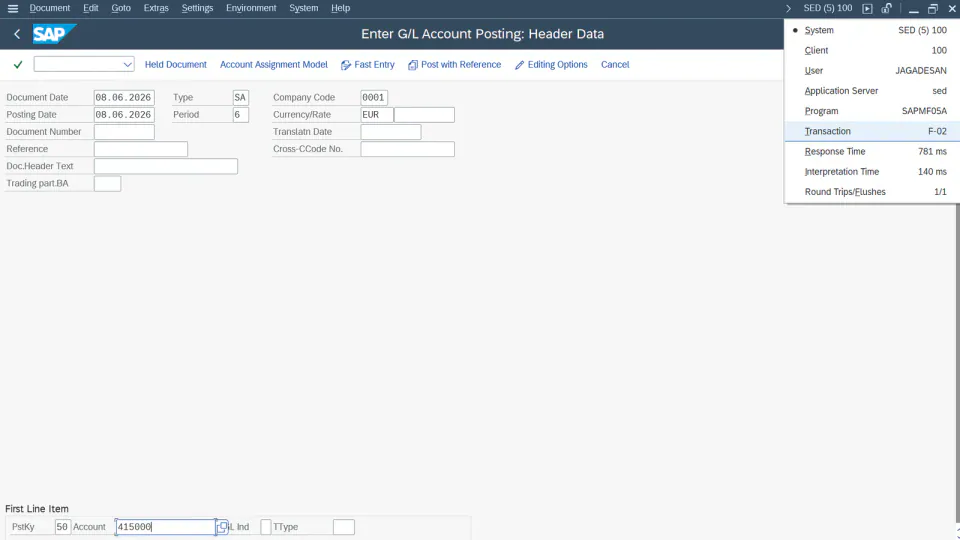
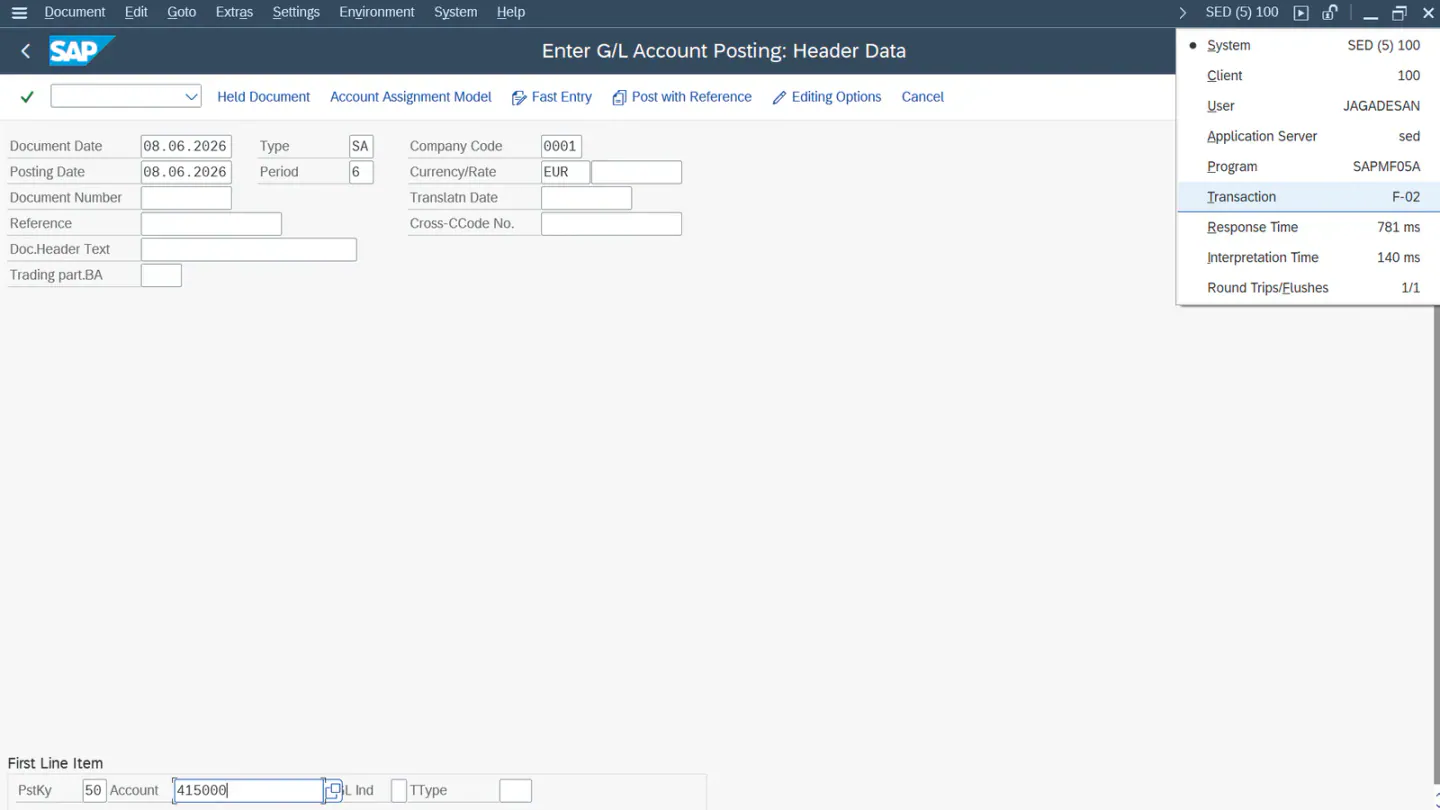
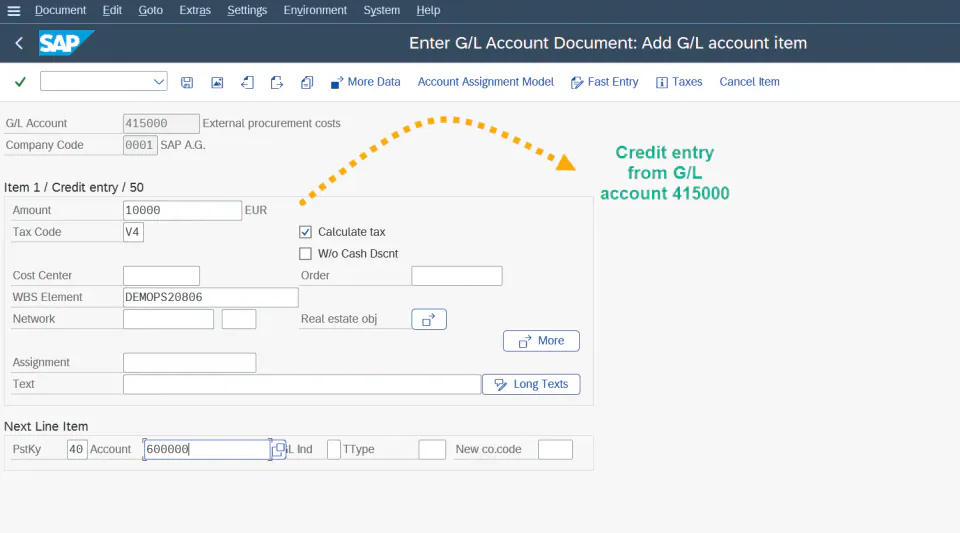
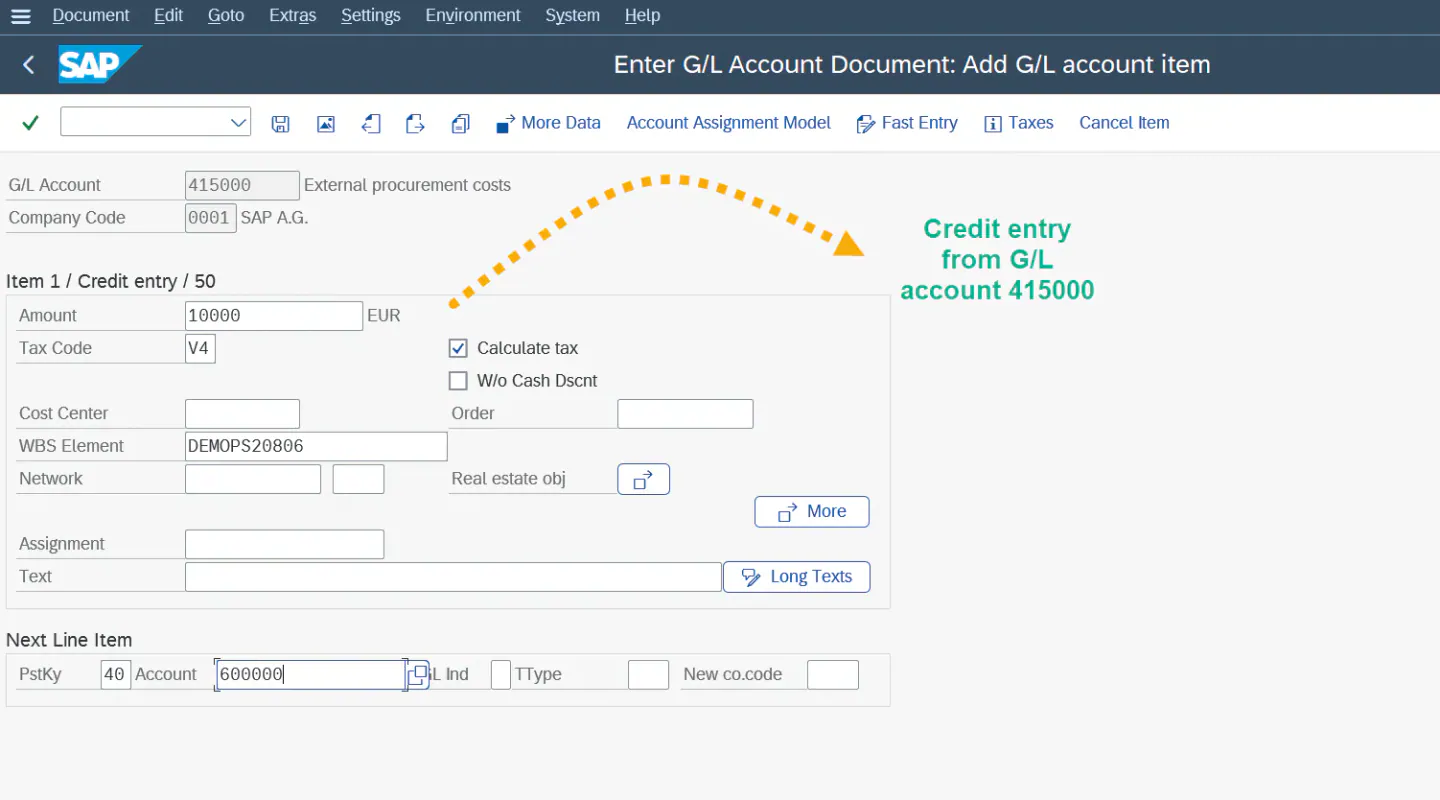
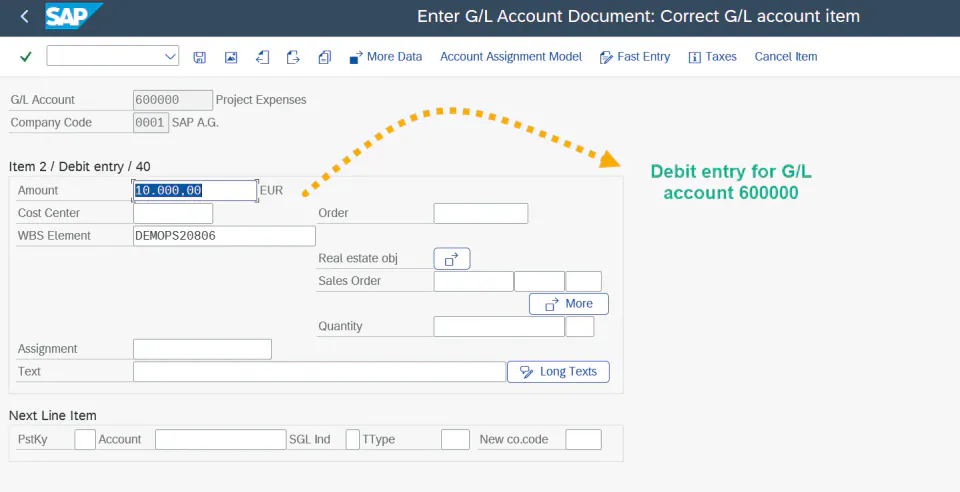
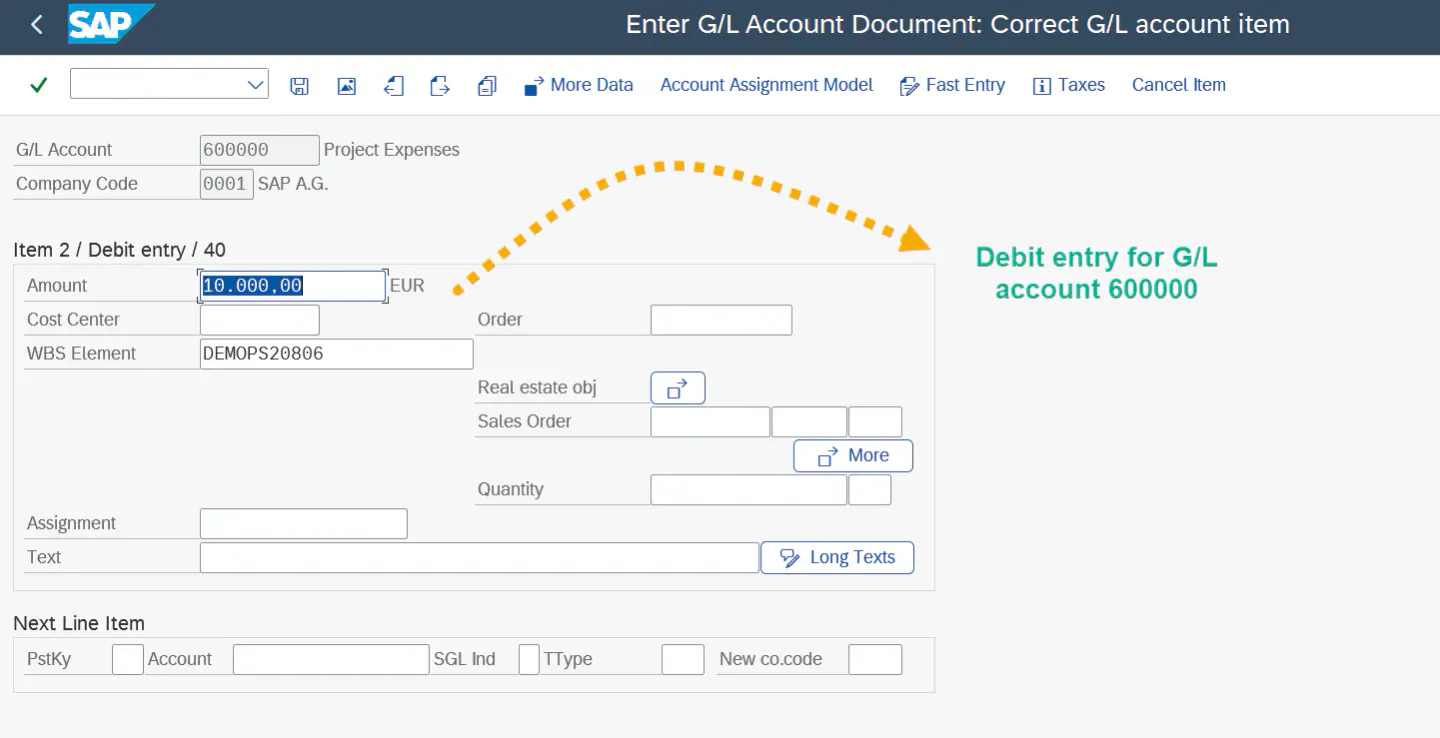
- After entering the credit and debit line items, choose Save. The document is then posted successfully.
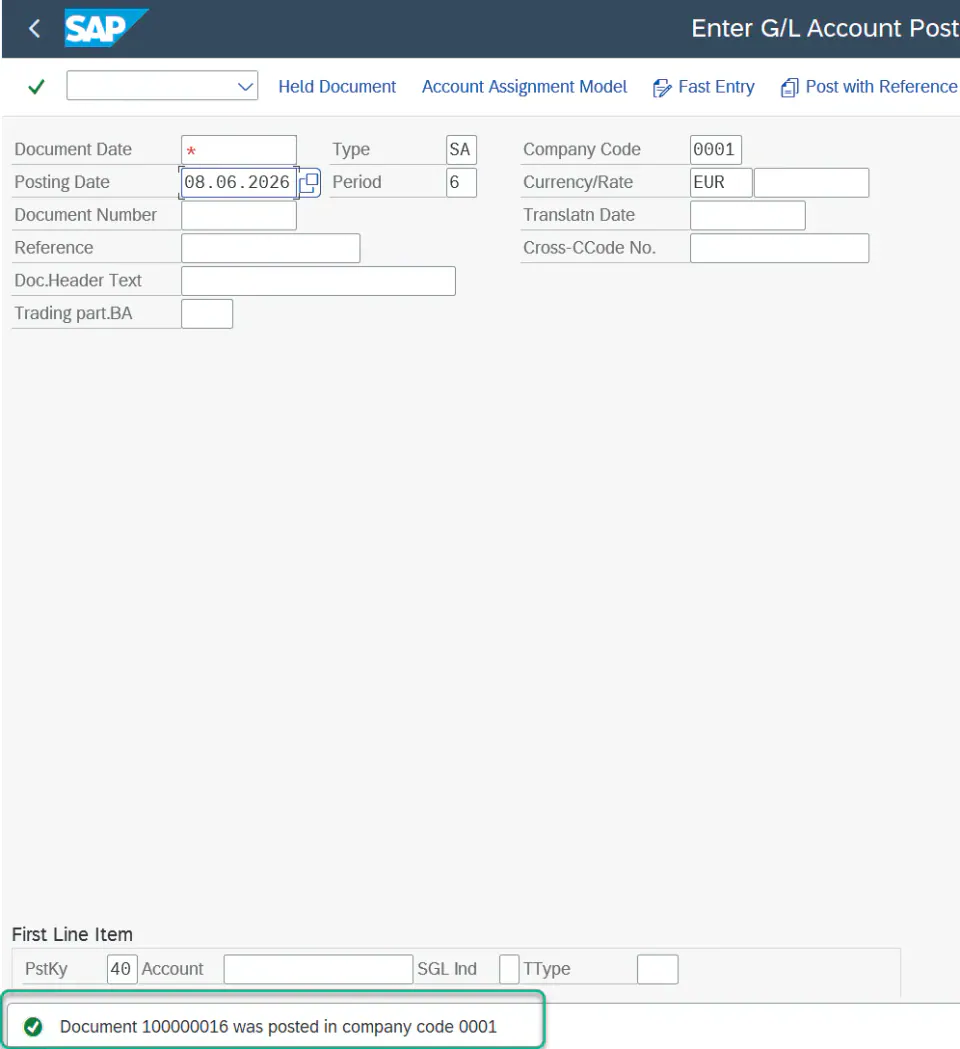
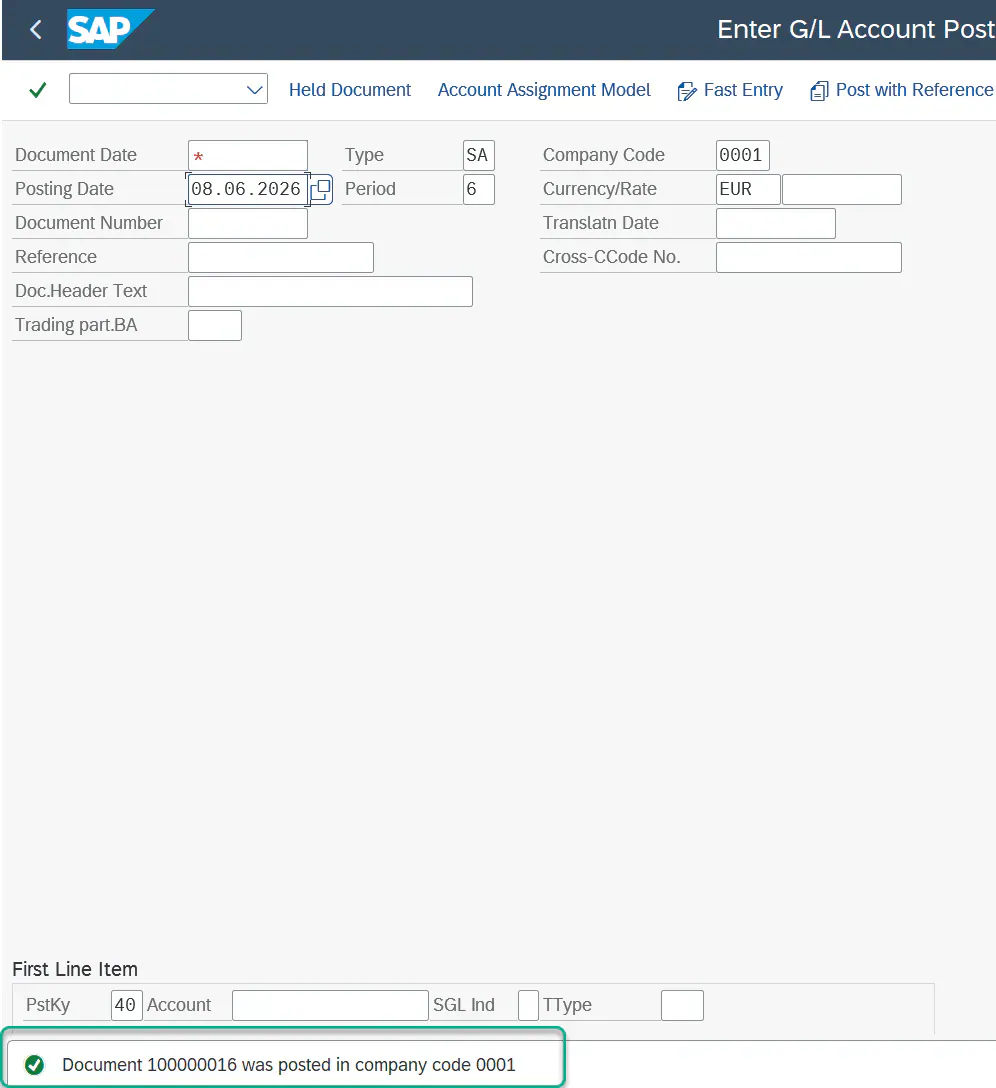
- Once posting is successful, run the report
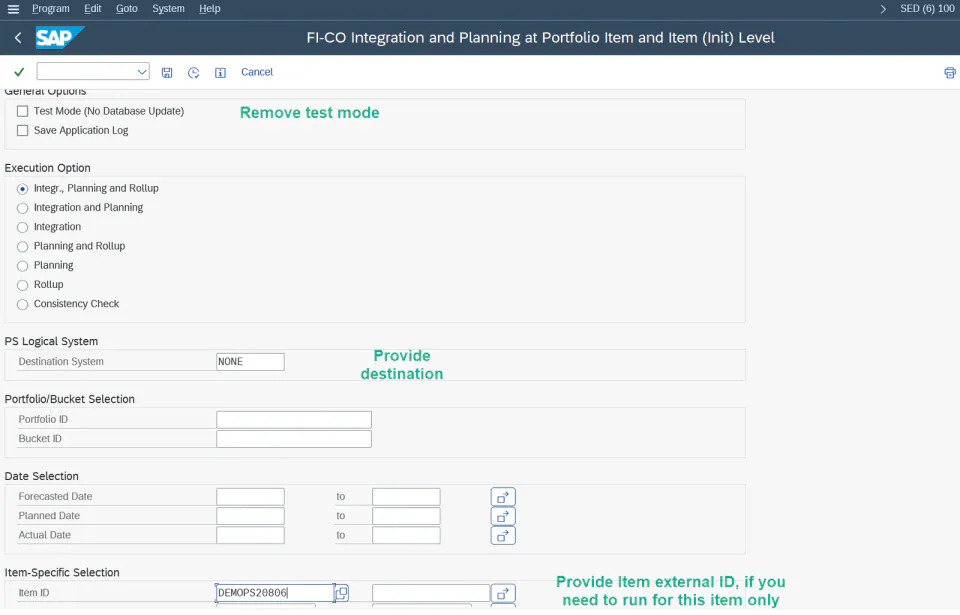
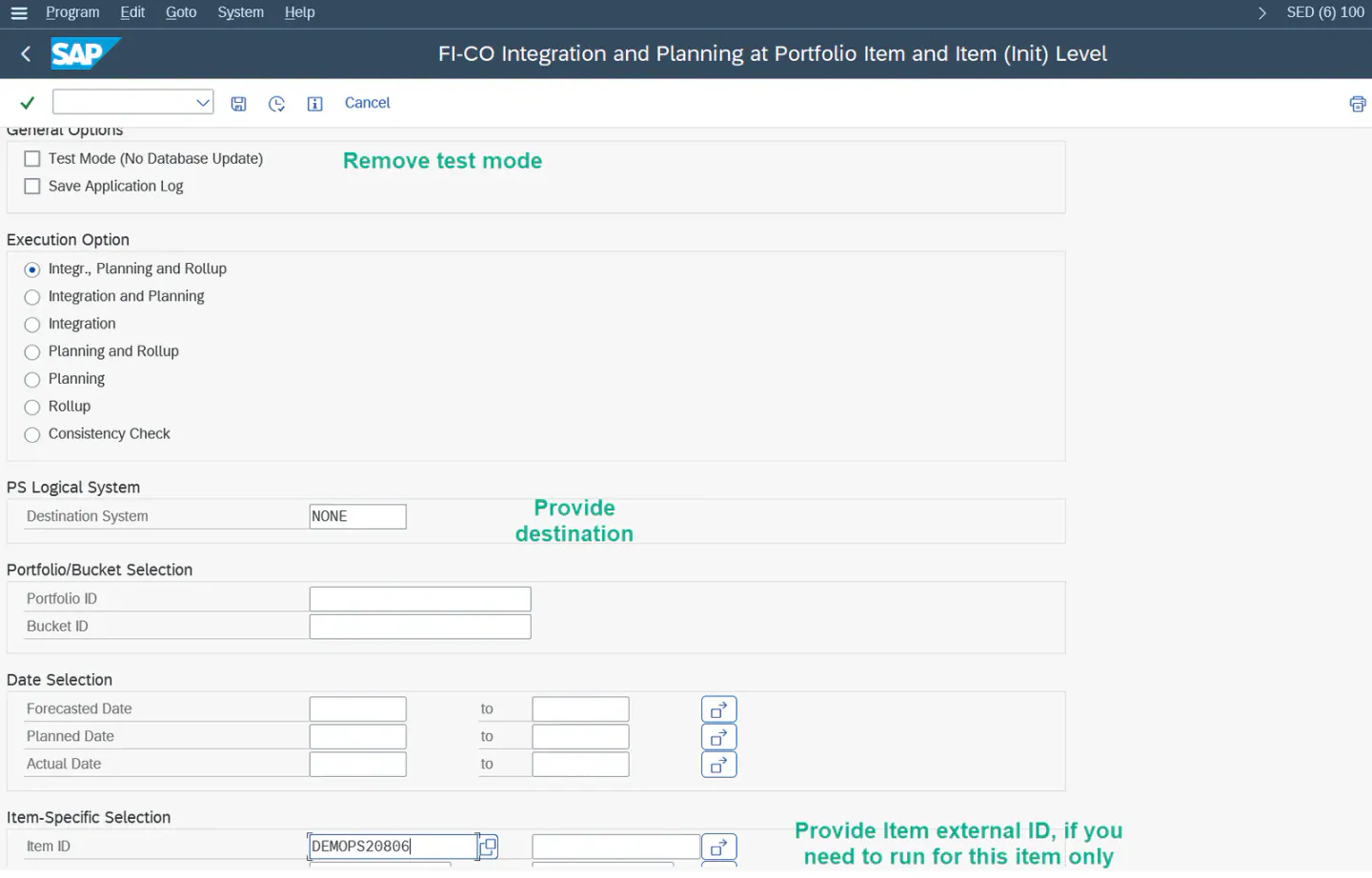
/RPM/FICO_INT_PLANNINGwith the inputs below to reflect the amount in the item.
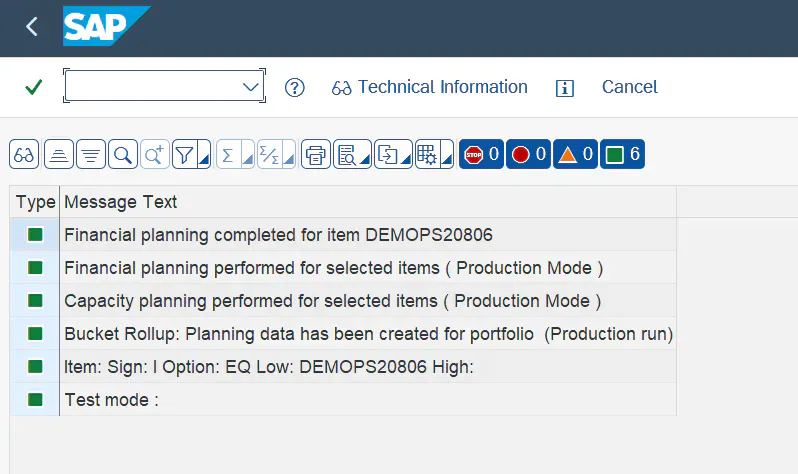
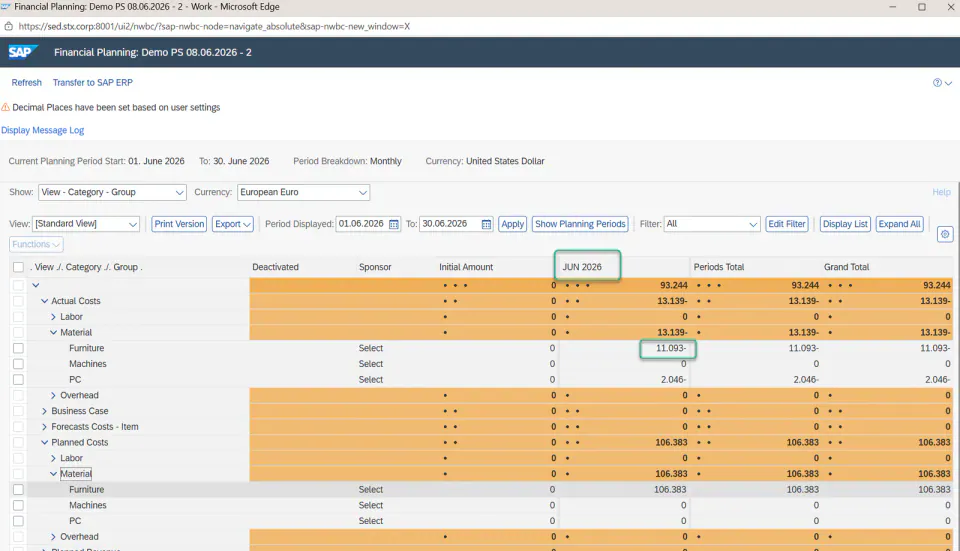
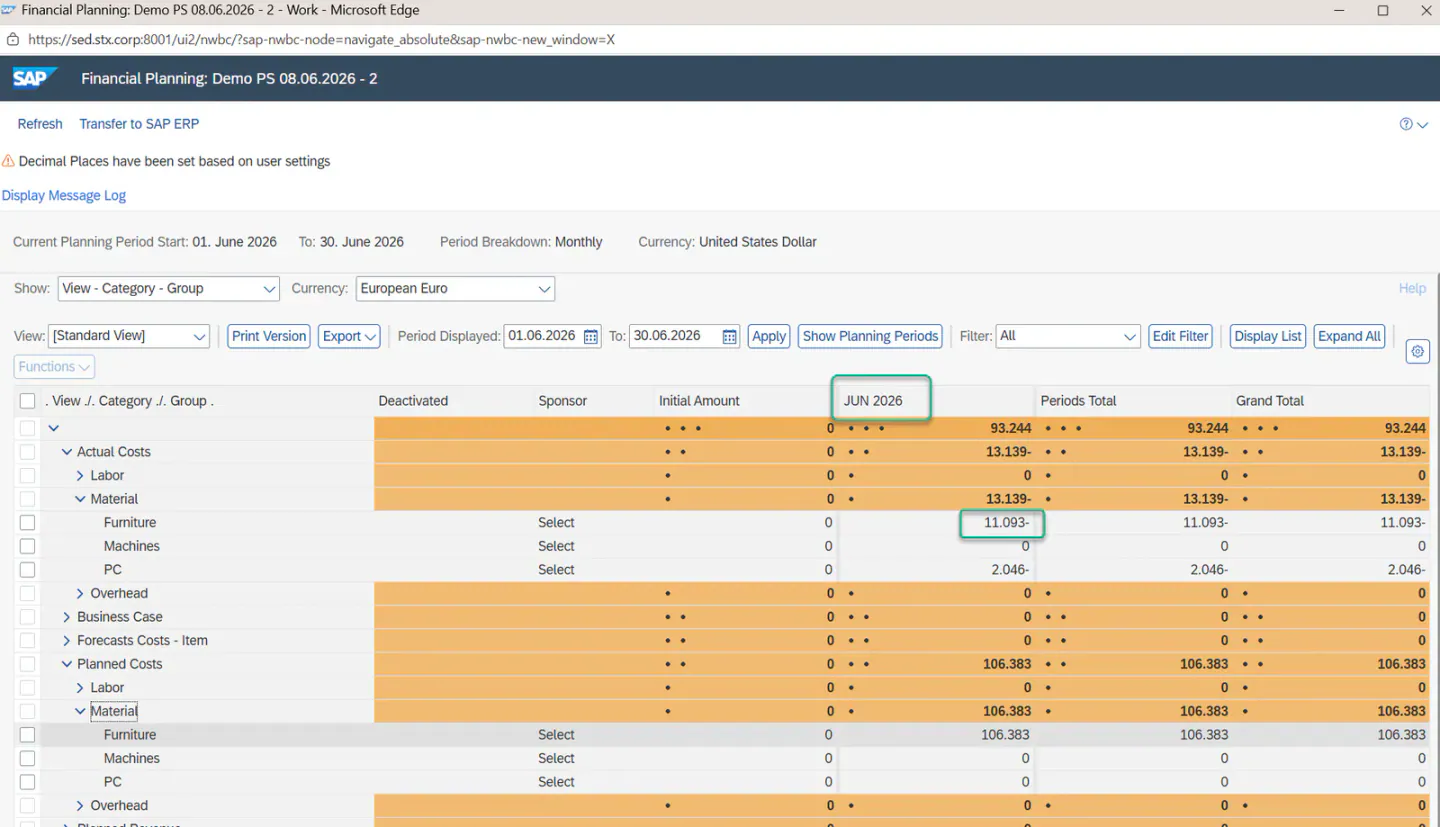
- Open the RPM item and check the financial planning. The actual amount is posted against the Furniture cost element (G/L account 415000).