

IMG Customization
Configuration steps
- Linking the decision to the activity
XCM_AGEX,XCM_PREXandMDG_ADM( This is required to provide the customer specific decisions for these activities )
- To link Decision to the Activity, navigate to the following IMG path: sophisTex Add-On Solution Customizing (Tcode: /STX/CUS) → sophisTex Functional Solutions→ eXtended Change Management → Standard PLM Customizing → Process routes → Define and Assign Decisions
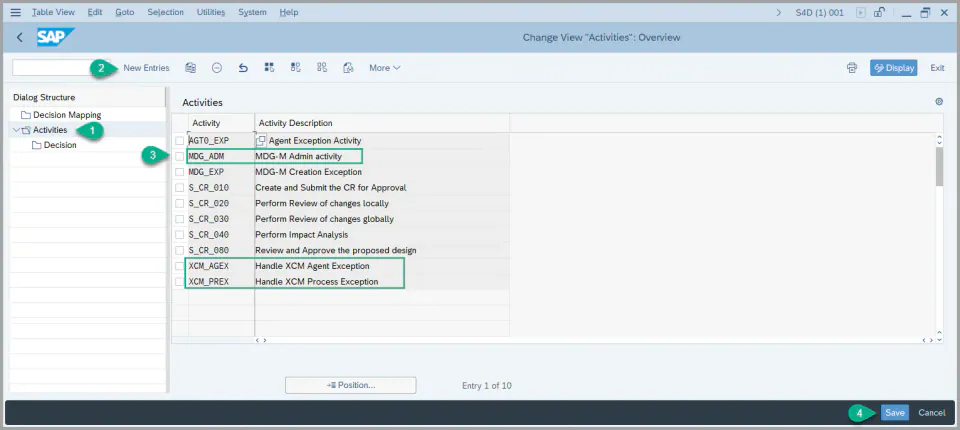
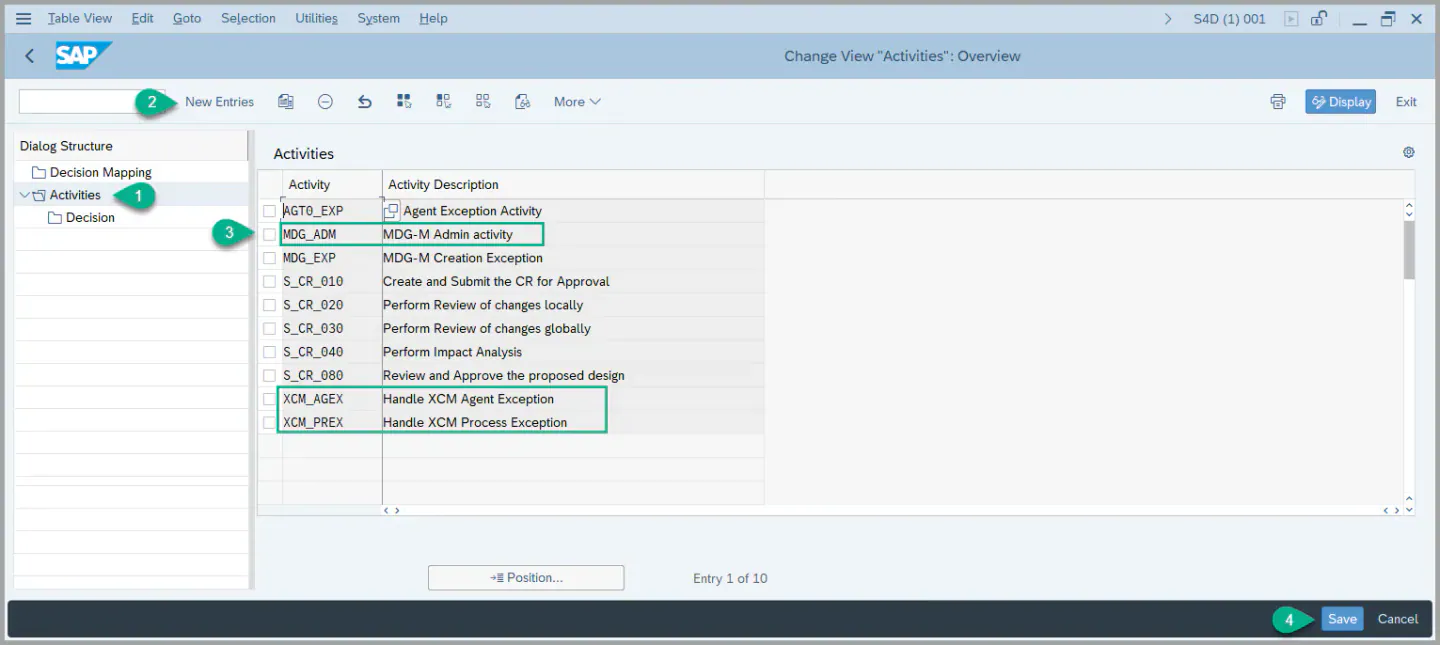
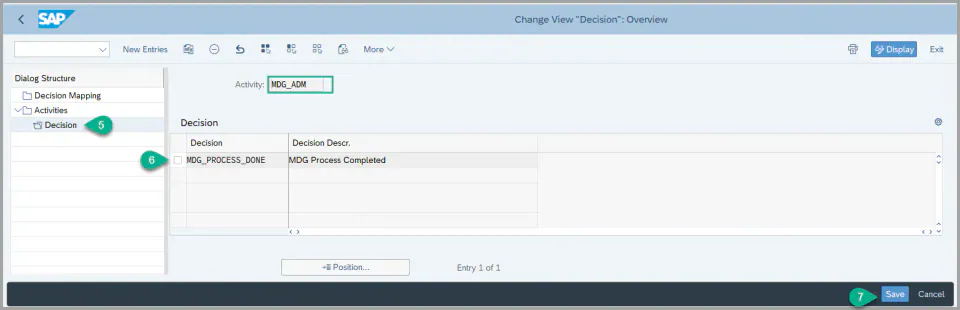
- Select the Activity for which you want to assign a decision, Click on Decisions on the left-hand side.
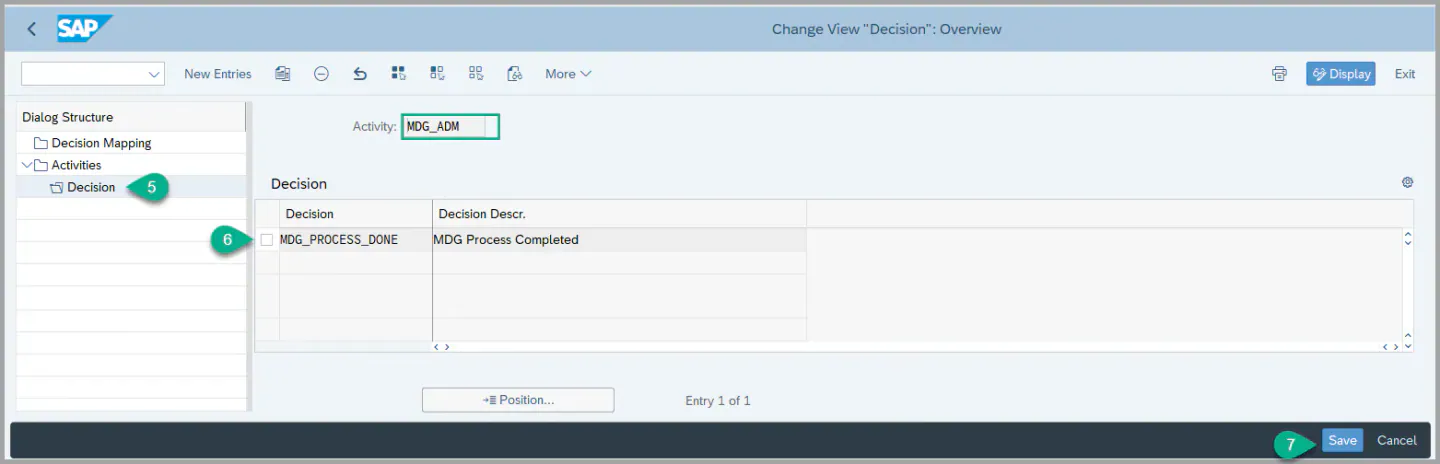
- Add the required Decision. Click Save .
2. Adding function AGT_EX_ADM to the existing function profile. (This is required to use this function in the agent determination using Teams and Responsibility)
- navigate to the following IMG path: sophisTex Add-On Solution Customizing (Tcode: /STX/CUS) → sophisTex Functional Solutions→ eXtended Change Management → Standard PLM Customizing → Responsibility Management → Functions → Define Function Profiles
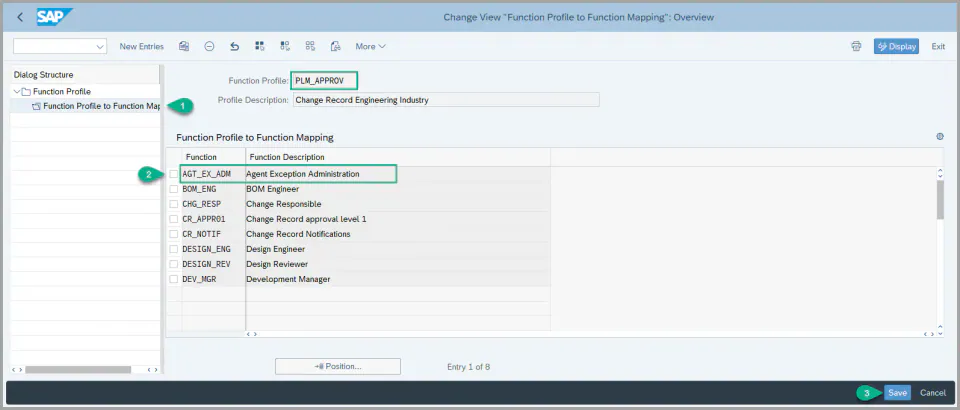
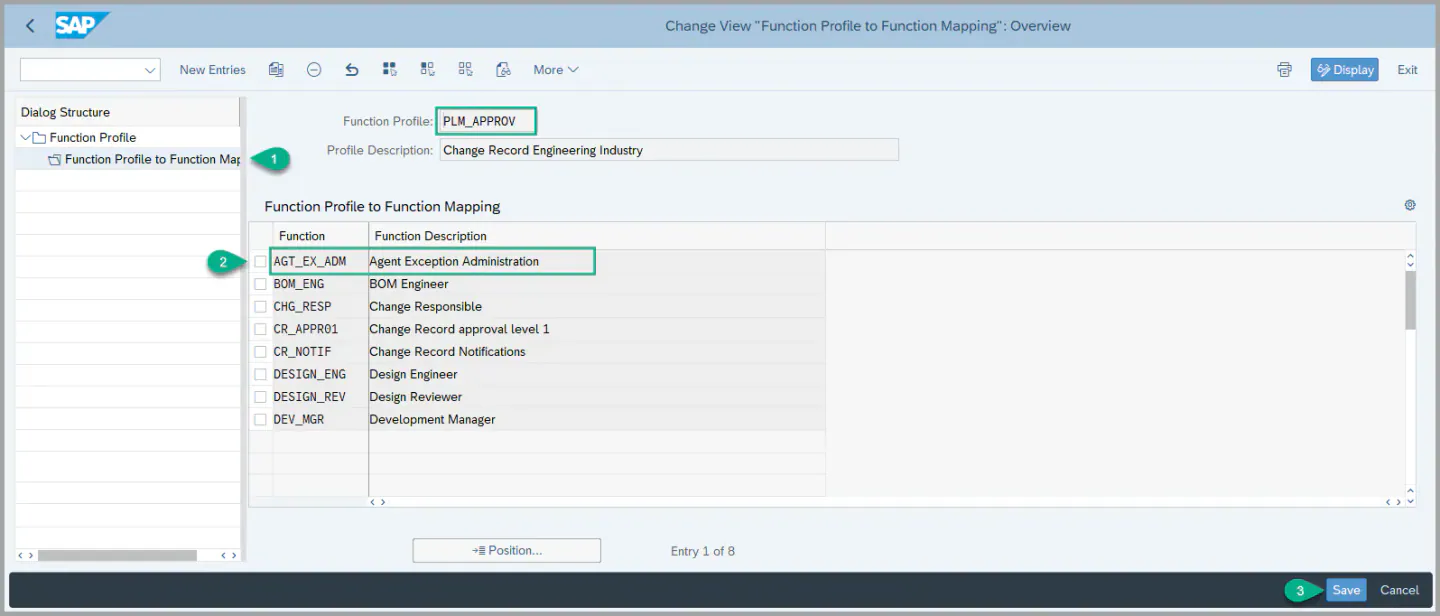
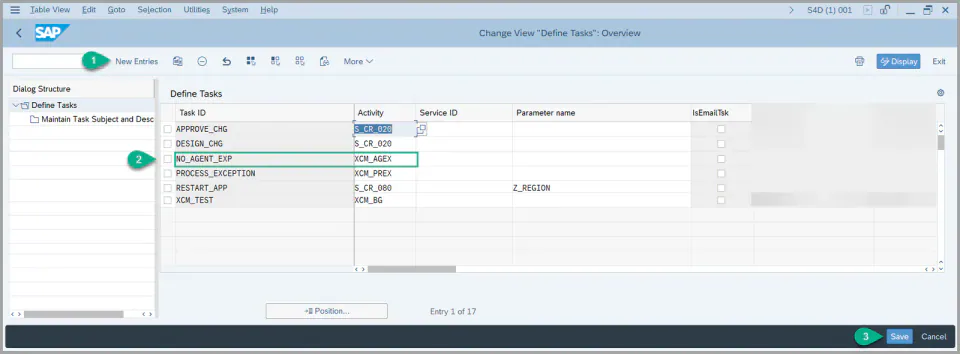
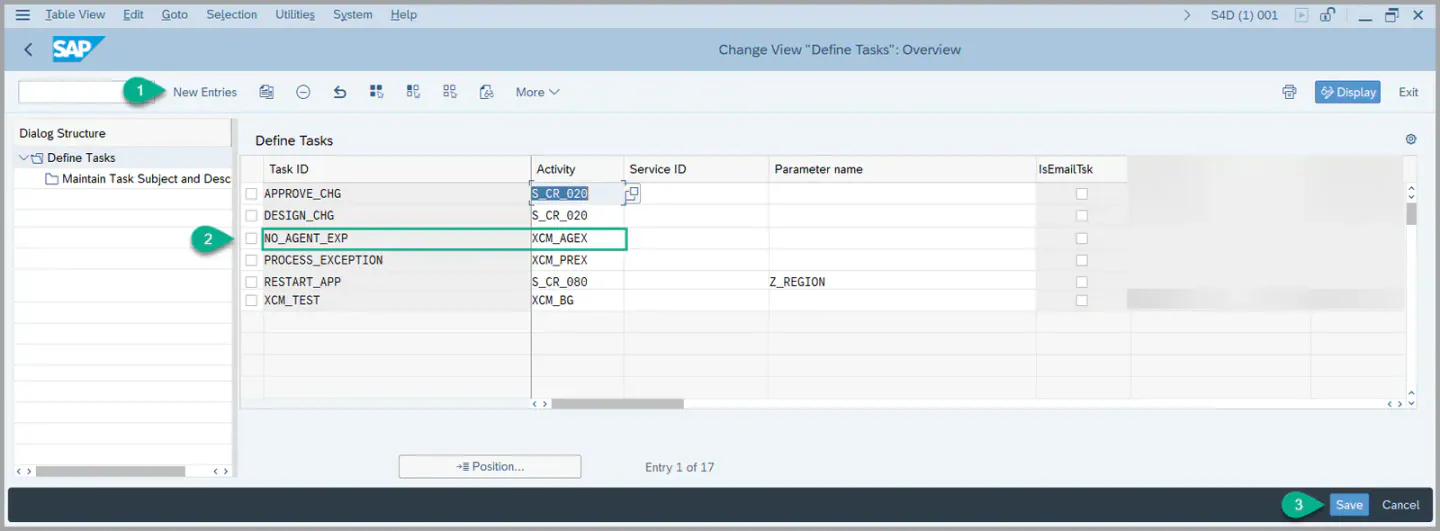
3. Create a Task ID by linking the activity ( we read the relevant Task for this activity and use it to create Admin Task for MDG-M task )
- To configure a Task ID, navigate to the following IMG path: sophisTex Add-On Solution Customizing (Tcode: /STX/CUS) → sophisTex Functional Solutions→ eXtended Change Management → XCM Customizing → Process Control → Define Tasks
- A Task ID is linked to an Activity, Now Maintain the Task subject and description for the Task ID created.
See Also
IMG Customization
Exception Handling in Process Control
Keywords
Process Exception, No Agent Exception