

Enterprise Search for Change Record
Overview
The XCM Change Record Enterprise Search delivers an enhanced and flexible search experience, enabling users to efficiently locate change records across both header-level and item-level data.
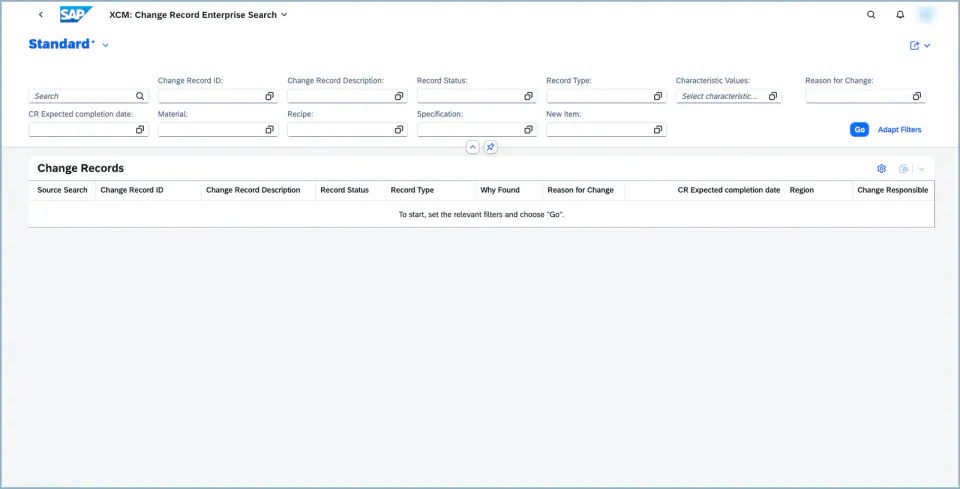
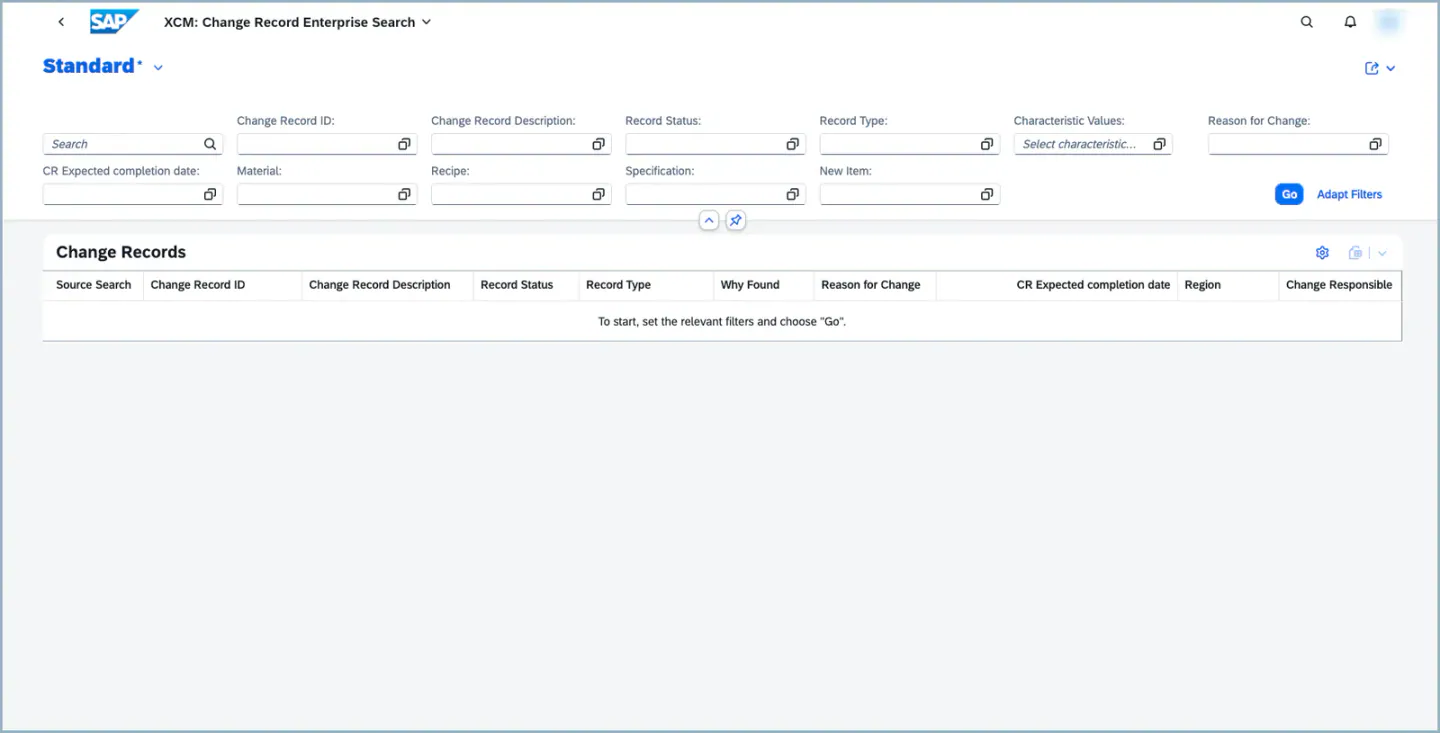
Unlike the SAP standard Manage Change Records application — where search is limited to header information — this solution extends search capability to include item-level attributes. Users can search by any item attribute, significantly improving the accuracy and relevance of results.
Key Capabilities
-
Extended Search Across Header and Item Data Users can search change records not only by header fields but also by any item-level attribute. This addresses a key limitation of the SAP standard application and helps users quickly find the most relevant change records.
-
Configurable Search and Output Fields via the Enterprise Search Cockpit The companion application — XCM Enterprise Search Cockpit — serves as the central configuration hub for this solution. Once the relevant attributes are configured and published, the Fiori list view dynamically reflects the updated fields. This ensures the search experience is tailored to specific business requirements and remains scalable for future enhancements. It allows administrators to define:
- Selection fields
- Result fields
- Search terms, including fuzzy search behavior
- Which standard fields are hidden from the search (from XCM 2026.5.0, only with SAP S/4HANA 2025)
-
Classification-Based Search Users can search based on classification data, making it easier to identify the most appropriate change records for a given context. Next to the class, you can also search by characteristic values (see Search by Characteristic Values below).
-
Fuzzy Search with “Why Found” Transparency when “Free text search” is enabled for fields, the results include a “Why Found” column for header field matches. This column provides transparency into why a particular record was returned, helping users understand the search logic and refine their queries more effectively.
-
Search in the Detailed Description Users can find Change Records by words written in the Detailed Description (long text) of the Change Record.
-
Readable filter values Selected filter values are shown with their description and ID, for example Released (40), instead of the technical key only.
-
Navigation to the right Change Record app Clicking a result opens the Change Record in the app that is configured for its Change Record type.
-
Saved views Users can save their filters and table layout as private or public views. Creating and changing public views can be restricted to authorized users.
Search by item attributes
The following item fields are available in the filter bar, each with a value help:
- Material
- Specification
- Recipe – searched by the Recipe ID (from XCM 2026.5.0); the value help shows the recipe description
- Document – document number, document part and document version
- Item Change Relevance and Item Processing Status
- Header Change Number and Item Change Number as separate filters
More fields, including your own custom fields, can be added with the XCM Enterprise Search Cockpit (see Steps to generate Artefacts). Fields that are not shown by default can be added through Adapt Filters.
Note: The free-text (fuzzy) search covers header fields only. Item fields are searched with the filters above.
Search by Characteristic Values
With the filter Characteristic Values you can find Change Records by the values of their classification characteristics.
1. Open the filter Characteristic Values. The Add Characteristics dialog opens.
2. Select the Class. The class value help shows only the classes you are allowed to see (see Authorizations below).
3. Add one row per characteristic and choose the operator and the value:
- contains, between and not between
- from / to ranges for numeric characteristics
- Empty and Not Empty
- For characteristics with fixed values, a value help is available.
4. Confirm the dialog and click Go. Only Change Records that match all characteristic rows are shown. The selected class and characteristics are shown with their description.
[Screenshot to be added: Add Characteristics dialog with two characteristic rows]
Note:
- One class can be selected per search.
- About six characteristic rows can be combined in one search.
- Negative pattern operators such as does not contain are not supported and are treated as contains.
- The characteristic filter is saved together with your view.
Search in the Detailed Description
Enter a word or phrase in the search field to find Change Records whose Detailed Description contains it. The detailed description can also be added as a column to the result list; formatting (HTML tags) is removed in the list (from XCM 2026.5.0).
This requires the full-text index on the detailed description (see Prerequisites).
[Screenshot to be added: search result found by a word from the Detailed Description]
Readable filter values
When you select values in the filters, the tokens show the description followed by the ID, for example for Change Record Type, Status, Change Execution Status, Created By and Recipe. Class and characteristic are shown with their description instead of the technical name. This makes saved views easier to read and share.
[Screenshot to be added: filter bar with tokens shown as “Description (ID)”]
Navigation to the Change Record
When you click a Change Record in the result list, the app opens the Change Record in the application configured for its Change Record type. This way, Change Records of an XCM type open in the XCM Change Record app and Change Records of a standard type open in the SAP standard app. The KPI Dashboard follows the same rule.
1. Maintain the navigation targets in the maintenance view /XCM/CR_V_NAV_TA (SM30 or the IMG node in /XCM/CUS):
- Change Record Type – leave it empty to define the default for all types
- Semantic Object and Semantic Action – the launchpad intent of the target app
- Key Parameter Name – the parameter that carries the Change Record number; leave it empty to use
ChangeRecord - Navigation Parameters – additional parameters, if needed
- Active – only active entries are used
2. Make sure the target app is assigned to the user’s role, otherwise the navigation cannot be opened.
[Screenshot to be added: /XCM/CR_V_NAV_TA with a default entry and one entry per Change Record type]
Note:
- The entry for the specific Change Record type is used first, then the default entry. If no entry is maintained, the app opens the XCM Change Record app (intent
ChangeRecord-manageCustomChangeRecords). - If the Key Parameter Name does not match the target app, the target opens without the Change Record.
- Do not forget to set the Active flag when you create an entry.
Saved views and public views
You can save the current filters and the table layout as a view, both in the filter bar and in the table. A view can be private (only for you) or public (for all users).
From XCM 2026.5.0, creating and changing public views can be restricted to authorized users with the switch XCM_ESH_PUBLIC_VIEW_AUTH. When the switch is active:
- Users without authorization do not see the Public checkbox and can only save private views.
- In Manage Views they cannot rename, overwrite or delete public views. They can still use Save As to create their own private copy.
- Private views are never restricted.
- With the user list of the switch you can limit the restriction to selected users.
When the switch is not active, every user can create and change public views as before.
[Screenshot to be added: Save View dialog with and without the Public checkbox]
Authorizations
- Class value help and characteristic search – when the switch
XCM_ESH_CLASSIFICATION_CONTROLis active, users see only the classes they are allowed to display for an allowed Change Record type. This needs/XCM/CRCLwithACTVT = F4and/IAM/IAUTHwith display authorization (/IAM/I_ACT = 03) for the Change Record type. When the switch is not active, all classes of class type 106 are offered. The classes are registered per Change Record type as described in Set default characteristic values and restrict maintenance by authorization. - Public views – authorization object
/XCM/CR, fieldACTVT:59to create and delete public views,AEto rename and overwrite them (only checked whenXCM_ESH_PUBLIC_VIEW_AUTHis active). - Generate Artefacts in the XCM Enterprise Search Cockpit – authorization object
/XCM/CRwithACTVT = 64. Without it, all switches in the cockpit are read-only and the generation is refused.
Note: If the switch XCM_ESH_CLASSIFICATION_CONTROL is active and the user does not have /XCM/CRCL with ACTVT = F4, the class value help stays empty.
Steps to generate Artefacts
Generate Artefacts allows our customer to add custom fields to the search input and output, or enable free-text search with a click of a button. This is especially important when new fields are added at the Change Record header or item level, as they can be seamlessly included in the search filter criteria and search results to allow searching and displaying their values in the search list. Follow steps below to add custom fields to search:
- Open the tile “XCM Enterprise search cockpit”
- Enable or disable the field based on your business requirement.
- Click on the “Generate Artefacts” button.
- A message saying “Artefacts Generation Started” will be displayed.
- A background job will start, which activates all the steps mentioned in the Optional Steps section below.
- If certain processes (such as connector activation) do not complete, follow the optional steps manually.
5. Click on the “Refresh” button.
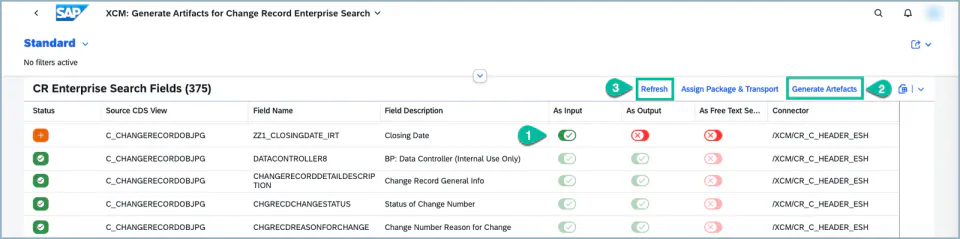
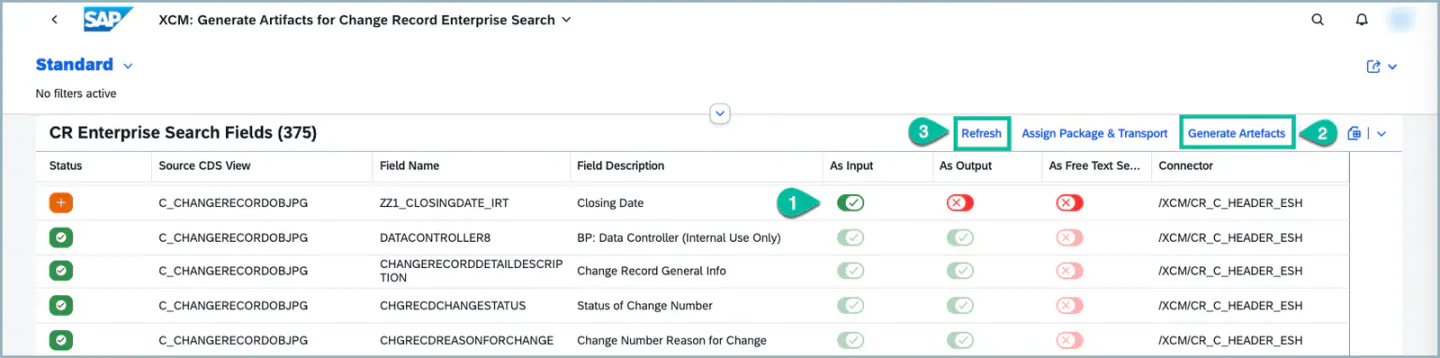 6. The field you enabled will remain in the enabled state after refreshing.
7. Navigate to “XCM Change Record Enterprise Search”.
8. The field enabled in Step 2 will now be available in the filter values.
Package and transport
Before you generate for the first time, use Assign Package & Transport in the cockpit to choose the package and the workbench transport request for the generated objects. Do not use a structure package. The button is disabled while an active transport is assigned.
[Screenshot to be added: Assign Package & Transport in the XCM Enterprise Search Cockpit]
Custom fields with a namespace
Custom fields whose name starts with a namespace (for example /ABC/LEADPLANT) can be generated from XCM 2026.5.0. Before you generate, check that no field with the same name without “/” (for example ABC_LEADPLANT) was created manually; otherwise the generation stops with a message.
If the generation fails
Each field has its own log. Click the Log button in the row of the field to see the messages of the last runs (date, time, type, message and user). The messages are also written to the application log (transaction SLG1, object /XCM/CR, sub-object ESH_ATTRIBUTES). If a connector cannot be used, the search app shows an error and clears the filters after you confirm it.
Show or hide fields in the search
From XCM 2026.5.0, the XCM Enterprise Search Cockpit lets you decide for every field – the standard fields delivered by XCM as well as your own custom fields – whether it is offered in the search app. This way you can remove fields your users do not need, or offer a standard field that is hidden by default (for example New Item).
Availability: only in XCM for SAP S/4HANA 2025. It is not available in XCM for SAP S/4HANA 2023, because SAP S/4HANA 2023 cannot apply metadata extensions to the search entity of the app. In XCM for SAP S/4HANA 2023, standard fields stay as delivered; use the cockpit to add your custom fields as described in Steps to generate Artefacts.
Each field has three switches:
- As Input – the field is available as a filter. It is offered in Adapt Filters; users add it to the filter bar themselves.
- As Output – the field is available as a column. It is offered in the table settings; users add it to the result list themselves.
- As Free Text Search – the field is included in the free-text (fuzzy) search.
If As Input and As Output are both switched off, the field is completely hidden in the search app.
1. Open the tile XCM Enterprise Search Cockpit.
2. Find the field and switch As Input, As Output and As Free Text Search on or off. Hover over a switch to see why it is on, off or cannot be changed.
3. Click Generate Artefacts, then Refresh. Check the result with the Log button of the field.
4. Open XCM Change Record Enterprise Search. The field is now offered (or no longer offered) in Adapt Filters and in the table settings.
[Screenshot to be added: cockpit list with the three switches and the tooltip of a read-only switch]
[Screenshot to be added: Adapt Filters in the search app before and after hiding a field]
Rules for the switches:
- Default fields – Change Record, Change Record Type, Status and Description are always on and cannot be changed.
- Header fields – all three switches can be changed.
- Item fields (Material, Document, Specification, Recipe, Item) – only As Input can be changed. A Change Record has many items, so item fields cannot be shown as a column and are not part of the free-text search.
- A field that exists in the header and in an item is shown only once, in the header row.
- As Free Text Search is not possible for calculated fields (for example a name put together from several fields). The generation then ends with a warning in the log and the field is not added to the free-text search.
Note:
- A field that is switched on is available, not placed in the filter bar or the result list automatically. Users add it with Adapt Filters or the table settings, and can save it in their views.
- If you hide a field that is used in a saved view, the field is no longer shown in that view. Inform your users before you hide fields that are commonly used.
- The first generation after the upgrade to XCM 2026.5.0 can change the fields offered in the search app, because the standard fields now follow the switches in the cockpit. Check the switches before you generate.
- XCM does not change the delivered objects. The settings are stored in your own generated objects in the package and transport you assigned.
Optional steps
If in case, the field you enabled (for Input/Output by following steps mentioned above) is not reflected in “XCM Change Record Enterprise Search” after generating artefacts, follow these steps:
1. Open SAP logon,
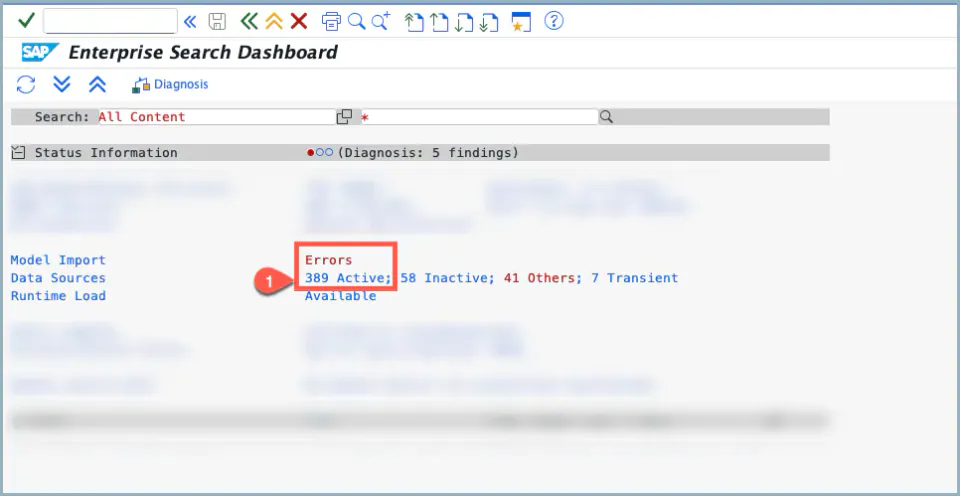
2. Enter the T-code ESH_DASHBOARD and Press enter.
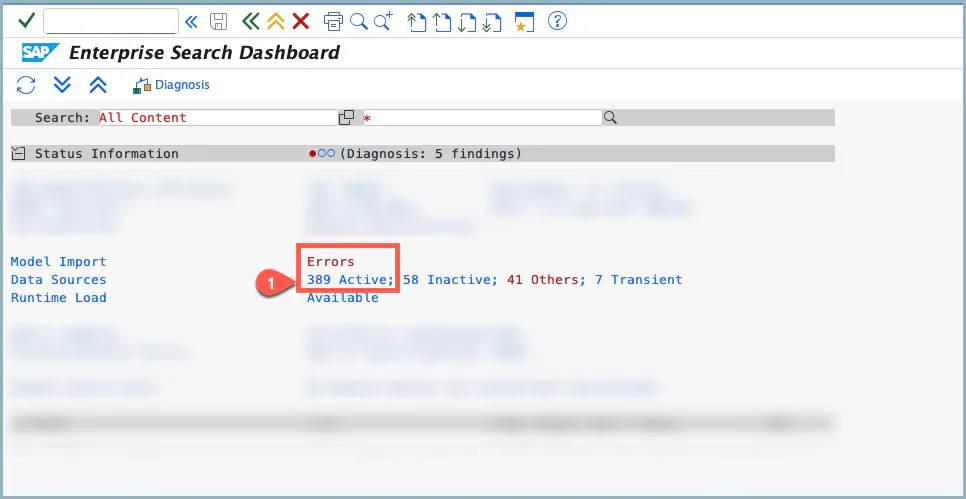
3. Click on “Active Entries” (as highlighted)
 4. Then click on the “Activate” button.
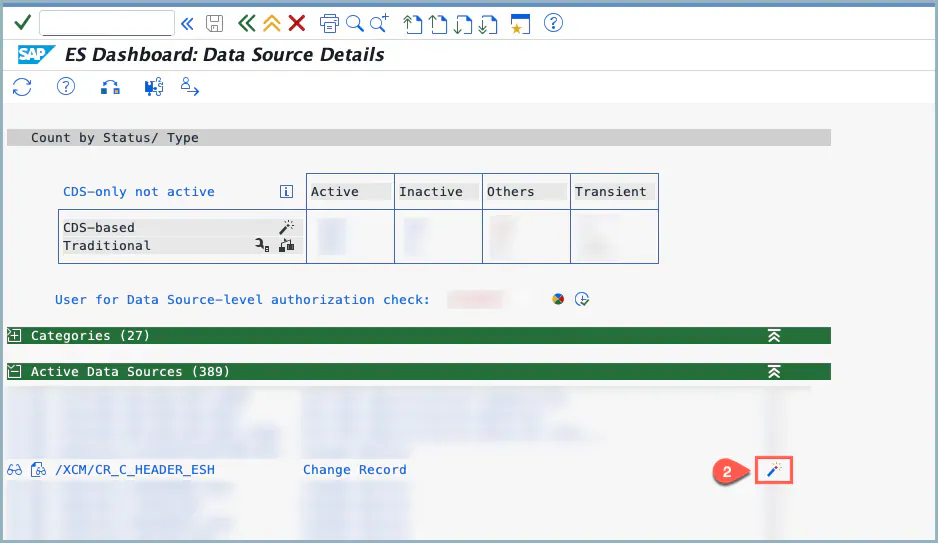
5. A success message will be displayed after activation.
6. Navigate to “XCM Change Record Enterprise Search” and search for the field you enabled.
7. The field enabled in Step 2 should now be visible in the filter values.
Limitations
- The free-text (fuzzy) search and the Why Found column cover header fields only.
- Parent Change Record cannot be offered as a search field, because the SAP source view uses aggregations that Enterprise Search does not support.
- The restriction of public views applies to the app. It does not block changes to views made outside the app.
- Hiding standard fields (see Show or hide fields in the search) requires XCM for SAP S/4HANA 2025. SAP S/4HANA 2023 does not support metadata extensions on the search entity, so the function is not offered there.
See Also
Set default characteristic values and restrict maintenance by authorization
Keywords
Enterprise Search, ESH, Search, Fuzzy, Why Found, Classification, Characteristic, Detailed Description, Long Text, Views, Variant, Public View, Navigation, Generate Artefacts, Enterprise Search Cockpit, Hide Field, Adapt Filters, As Input, As Output
Prerequisites
- Please Activate the connector if XCM Change Record Enterprise search is not working. (activation of the connector steps is mentioned above in optional steps) this is the one time activity.
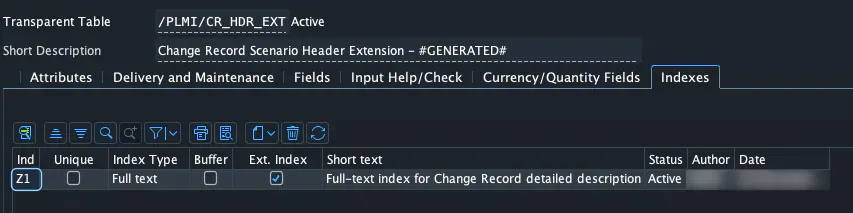
- Index should be created for table
/PLMI/CR_HDR_EXTfor the fieldRICH_TEXTwith index typeFull text
- The tiles XCM Change Record Enterprise Search (intent
XCMESH-manage) and XCM Enterprise Search Cockpit (intentSTXChangeRecord-generateArtifacts) must be assigned to the user’s role. - Import the BC set
/XCM/PR_CUSTOMIZATIONSto get the switchesXCM_ESH_CLASSIFICATION_CONTROLandXCM_ESH_PUBLIC_VIEW_AUTH(from XCM 2026.5.0), and set them to the state you want.