

BRF Customization
General Information
- This page provides step-by-step instructions on how to configure the BRF+ table to manage change item field properties effectively.
- Follow these steps to define rules for controlling field visibility, editability, and mandatory status based on business requirements
Configuration steps
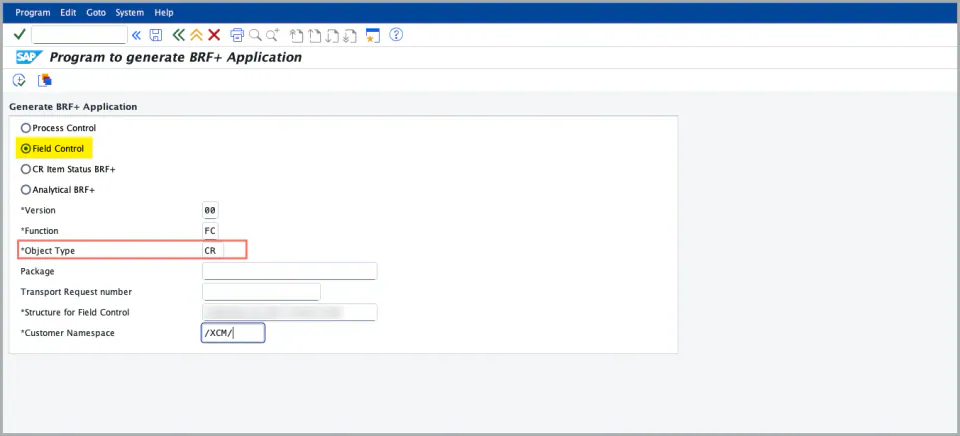
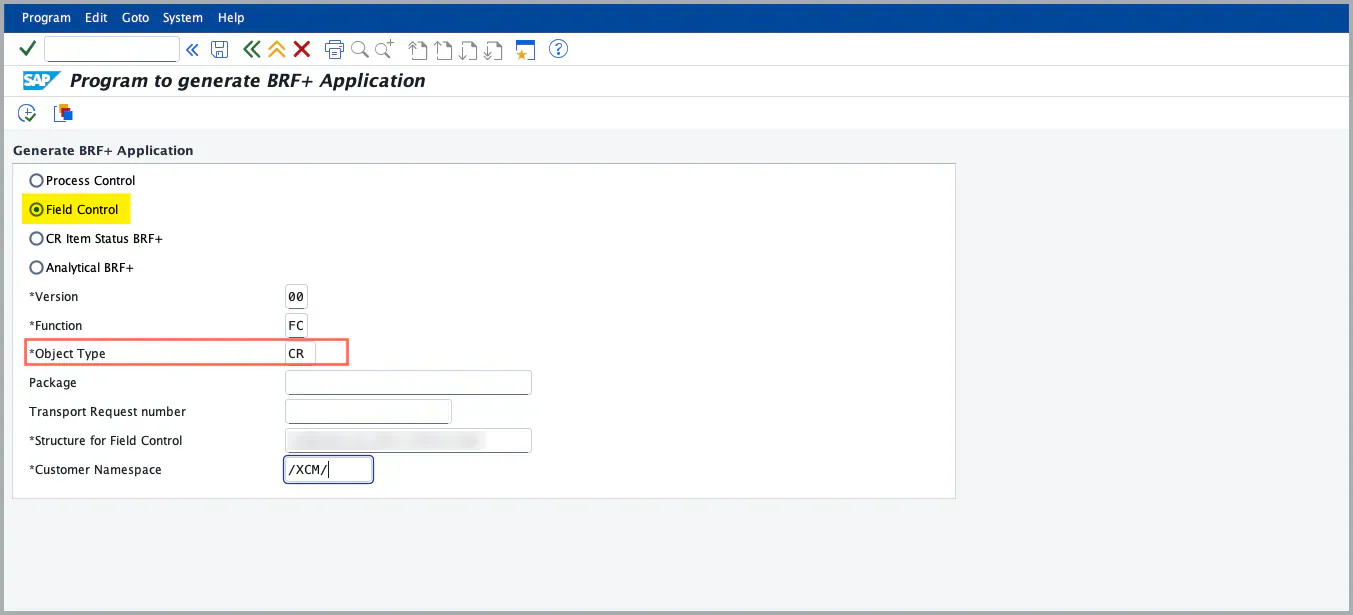
- As a first step and one time activity, you need to generate the BRF+ Application for field control, to do this run report program -
/XCM/BRF_GENERATE - Select the Field Control button and enter the details to generate the BRF+ decision table.
- Object Type “CR” controls the header fields. For items, use the corresponding object type instead — MAT, RCP, SPC, etc.
-
Let’s see how to handle field properties of Change Record Item fields dynamically based on Change Record Type, Change Record Status, and other header fields, Custom fields and Item fields.
-
Example Configuration:
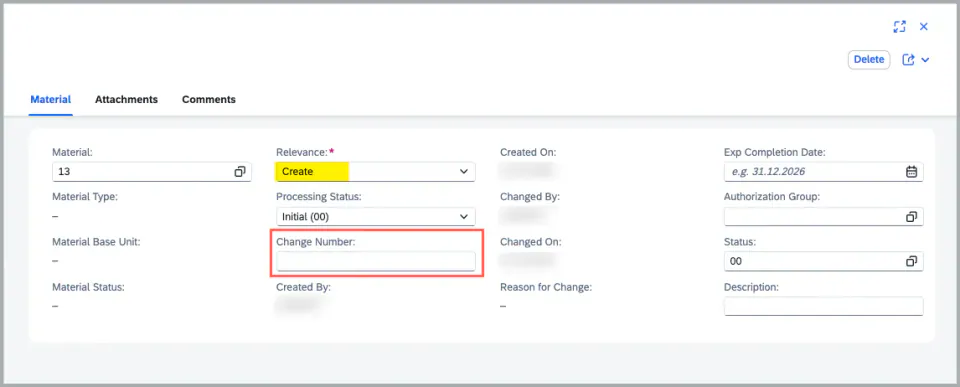
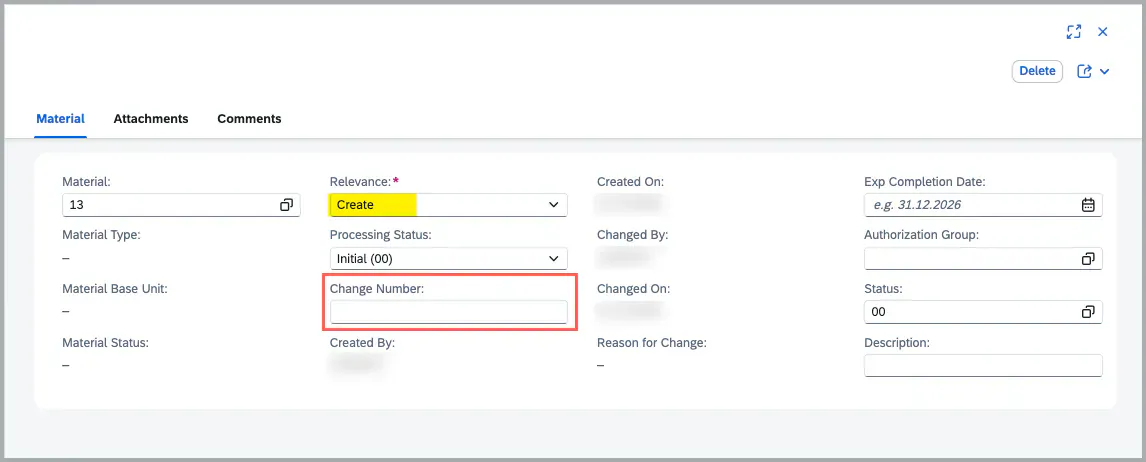
- When generating the decision table with Object Type MAT, you get the Material decision table. Example rule: if Change Record Type “XCM” is created with an Record status greater than and equal to 10, and Change Record Item Relevance is set to “CRE” and Change Number maintained in BRF+ become EDITABLE for input.
- The Property field is also mandatory, ensuring users enter the required values.
-


-
Customizing Field Properties: You can configure various field properties based on your requirements, including:
- Mandatory fields
- Read-only fields
- Editable fields
-
Conditions can combine a specific Change Record Type and Status with other standard fields, custom fields, and item fields.
-
The image below serves as a reference, illustrating how BRF+ customization changes the behavior of the UI fields.
-
It demonstrates how field properties such as visibility, editability, and mandatory status are dynamically controlled based on configured rules. With this reference, you can maintain other field property rules as per your business process in BRF+
See Also
Dynamic Field Control - CR Item
Keywords
FieldControl, BRF+
Prerequisites
- Additionally, the BRF+ function must be activated to ensure the rules are applied correctly. Refer to the task IMG Customization for details
- IMG Customization